

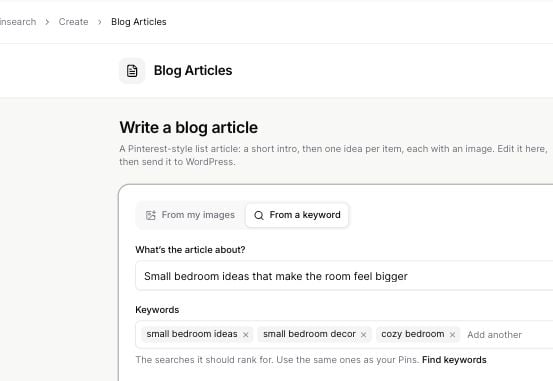
Start the brief with your article topic and relevant keywords.
1
Describe the article
Enter What’s the article about? and at least one Keyword. Use a focused topic and related search phrases. You can add up to 20 keywords.
2
Set its structure
Choose Niche and Focus. Leave Focus on Auto detect unless you need a specific angle. Choose Number of ideas from 1 to 25.
3
Choose the images
Choose Wide, Square or Tall. Wide images show more scene context; tall images suit vertical compositions. This sets the generated article images, not a finished Pin template.
4
Review the cost and write
The form shows two credits per idea. Click Write article once. When it starts, the writing view shows progress and the article is kept in Library.
Make the brief useful
Use a topic such assmall bedroom ideas that make the room feel bigger and keywords such as small bedroom ideas, small bedroom decor and cozy bedroom. The niche shapes structure and tone; choose Other when the listed niches do not fit.
Your keyword brief and last source mode can be restored when you return on the same browser. Review restored settings before starting a different article.