

Time zone and queue times
Your time zone controls the clock used for publishing and displayed times. Check it before selecting a date or setting a weekly schedule. Under Queue times, add a time and select the weekdays on which it should be used. The day counts show how many Pins those settings allow each day. You can fill times automatically by choosing a daily count, first and last time, and weekdays, then adjust the generated rows. Save your changes. Changing queue times can move upcoming queued Pins to the newly available times, so review Queue afterward.Pins from the same URL
Choose the minimum number of days between Pins for the same URL. This spacing works alongside weekly queue times and daily limits. It may leave a slot empty when the next Pin cannot fit yet. An automation can also specify spacing for Pins from each post. Review its scheduling step as well as the account settings when planning a batch.Pause publishing
Pause publishing stops the account’s queued and scheduled Pins from going out. It keeps the queue. Turn publishing on resumes publishing; queued Pins may move to the next available times. Some pauses require you to fix a connection or other blocking issue first. The app shows the reason instead of allowing a simple resume.Links and email
Add Pinsearch tracking tags addsutm_campaign=pinsearch to destination links so you can identify these visits in your analytics. Existing tracking tags are kept.
Optional emails cover a low queue and a daily published summary. Pinsearch also sends failure and reconnection messages, and shows queue alerts inside the app.
Export or delete publishing data
Download my data exports publishing data for the selected account. Delete all publishing data removes its drafts, queue and history from Pinsearch. The confirmation requires you to type DELETE PUBLISHING DATA.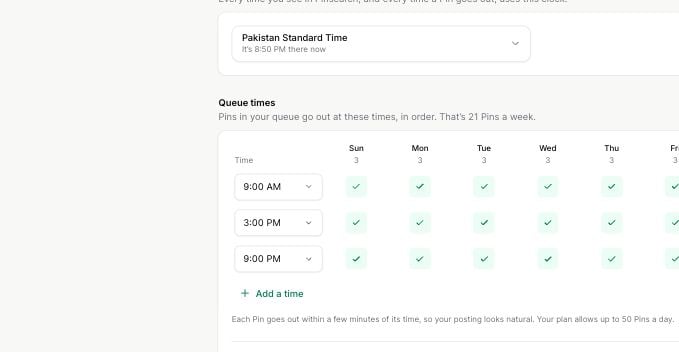
Queue times use the chosen time zone and checked days.