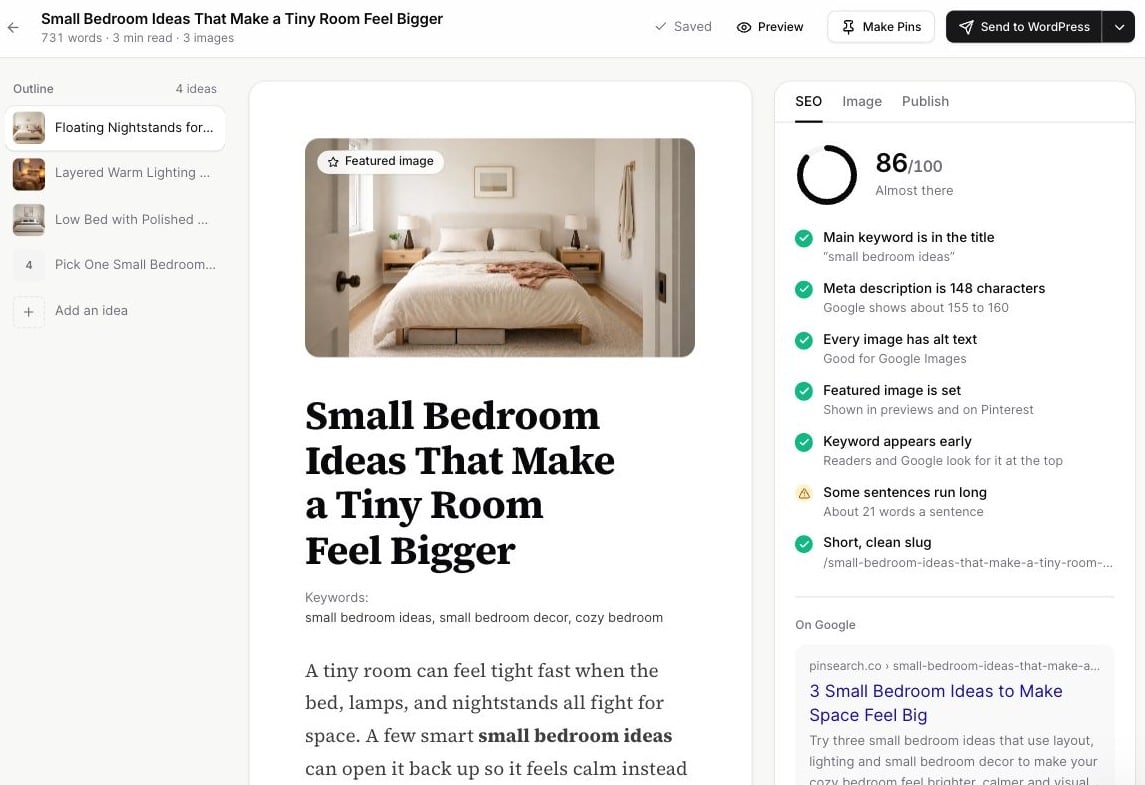
The Article Editor is where you turn a generated draft into something you are comfortable publishing.
Use it to review the title, adjust the article body, update images, and save your changes before you publish or export the article.
Open a generated article
- Go to Create.
- Open Library.
- Find the article you want to edit.
- Click View.
The article opens in the Article Editor.
What you can edit
In the editor, you can update:
- The article title.
- The main article text.
- Headings, lists, and paragraphs.
- Images inside the article.
- Image alt text, captions, and featured image settings.
- SEO fields in the SEO tab.
- WordPress publishing settings in the Publish panel.
Save your changes
When you change the article, the editor marks the draft as having unsaved changes.
Click Save before leaving the page, regenerating an image, or relying on the latest version for publishing.
Changes in the Article Editor are not final until you save them. If you leave the page before saving, your latest edits may not be kept.
Publishing with unsaved changes
If you click Send to WordPress while the article has unsaved changes, Pinsearch saves the latest version before sending it.
Even so, it is better to click Save yourself first. That gives you a clear checkpoint before publishing.
Practical editing checklist
Before you save the final version, review:
- The title reads naturally and matches the article.
- The introduction explains what the reader will get.
- Each section has a useful heading.
- The article does not repeat the same point too often.
- Image captions and alt text make sense.
- The article ends with a clear next step or takeaway.