Drafts is the place to prepare a Pin before it goes out. You can save incomplete work and return to it later.

Ways to create a draft

  • From Pin Maker: Select designs and use Add to Publishing. Choose the intended account; the designs become drafts for review.
  • New Pin: Upload or drop an image in the composer and enter the details yourself. Turn on Write it for me if you want Pinsearch to write copy and suggest a board. Text you enter yourself is kept.
  • Upload images: Use the additional creation menu beside New Pin, or drop images onto Drafts. Batch uploads prepare copy and board suggestions in the background.
  • Copy an existing Pin: Use Duplicate in Drafts or Copy to Drafts in Published.
Images must be JPG, PNG or WebP, under 10 MB each. Batch uploads accept up to 300 images at once, subject to the number of waiting Pins your plan allows.

Review the details

Open Edit Pin details to review the image and Pinterest preview. A Pin needs an image and board to publish. Title, description, alt text and destination link are optional, but useful copy and a relevant link usually make the Pin more helpful. An invalid link still needs correcting. Use Save changes before closing the editor. Replacing the image updates the same draft; review its copy and preview afterward.
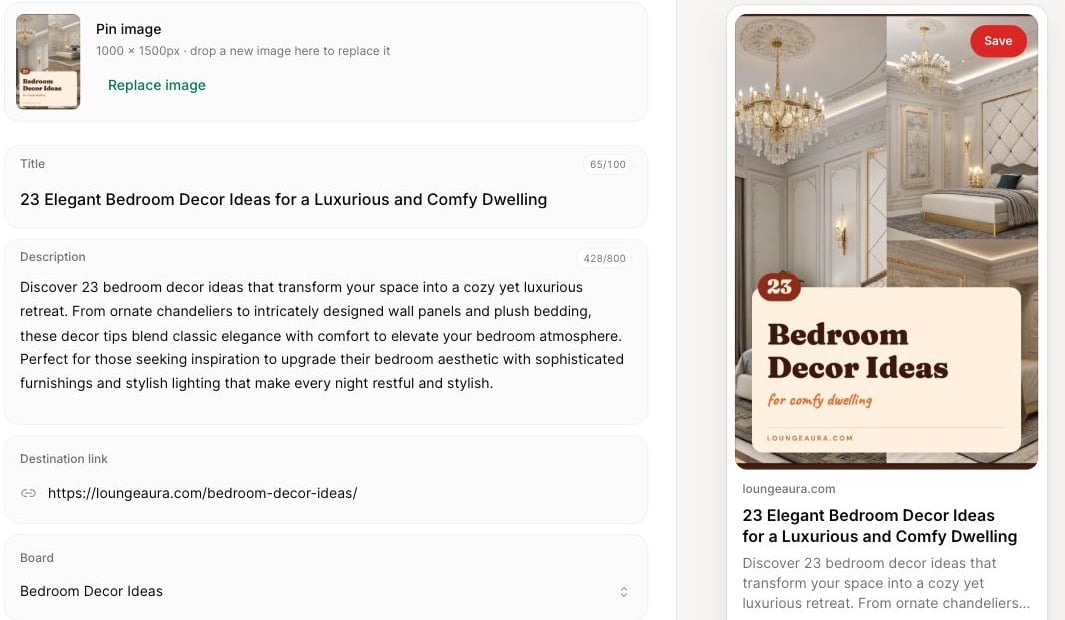
Pin editor showing a bedroom Pin, title, description, destination link, board and preview

Review the image, copy, board and Pinterest preview before scheduling.

Suggested copy and boards

Review suggestions before scheduling. Pinsearch may leave the board unselected if it cannot find a suitable match. Choose one yourself rather than assuming a suggestion will always be available. Use Rewrite title & description from the Pin’s menu to request fresh copy. Check the result before it goes out.

Work with a batch

Click Select, choose drafts, or use Select all ready. Batch actions let you add ready Pins to the queue, change their board, rewrite copy or delete drafts. Pins still needing attention must be fixed before scheduling. Move to account transfers the image and metadata to another eligible account. It clears the board and schedule because those belong to the previous account; select a new board before scheduling. Deleting a draft removes it from upcoming work. Use the Undo offered by the success message if the deletion was a mistake. See queue and scheduling for the three publishing choices.