Profile Explorer helps you research Pinterest accounts before you plan content, choose competitors to watch, or save profiles into a Project. Use it when you want to understand what a profile is about, how active it is, which pins are getting engagement, and which boards, topics, or colors show up often in recent content.
Profile Explorer search page with username input and example profiles

When to use Profile Explorer

Use Profile Explorer when you want to answer questions like:
  • How large is this Pinterest profile?
  • How often does this profile publish pins?
  • Which recent pins are getting saves, comments, or reactions?
  • Which boards and topics appear most often?
  • What visual colors does this profile use?
  • Should I save this profile as a competitor in a Project?

Search for a profile

You can search by entering:
  • A Pinterest username, such as ohjoy
  • A username with @, such as @ohjoy
  • A full Pinterest profile link
1

Open Profile Explorer

Open Profile Explorer from the Research section.
2

Enter a profile

Type a Pinterest username or paste a Pinterest profile URL.
3

Run the search

Click Explore.
After the profile loads, Pinsearch opens a profile report.

Read the profile header

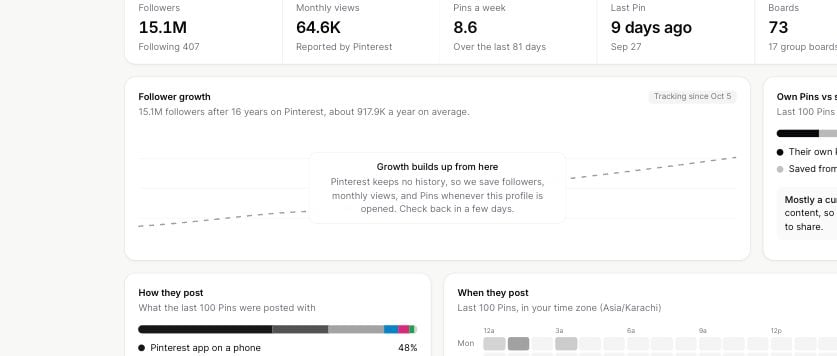
The top section gives you a quick profile summary.
Profile Explorer profile header with Add to Project and profile metrics
The header can include:
  • Followers: The size of the profile audience.
  • Following: How many accounts the profile follows.
  • Follower/Following: A quick ratio for comparing audience size against following count.
  • Monthly Views: The monthly view count shown for the profile.
  • Reach: A directional reach estimate for comparing profiles.
  • Est. Traffic: A directional traffic estimate for competitor research.
  • Views/Follower: A quick way to compare attention against audience size.
  • Domain: A website connected to the profile, when available.
Treat reach, estimated traffic, and views-per-follower as comparison signals. They are useful for research, but they are not the same as the account owner’s private analytics.

Review activity and engagement

Profile Explorer also summarizes recent pin activity.
Profile Explorer analytics cards for pin activity, engagement, recent boards, color palette, and topics
Use these cards to compare profiles quickly:
  • Pin Activity: Total pins, boards, group boards, last pin date, and pinning frequency.
  • Engagement: Average saves, average comments, reactions, and content mix.
  • Recent Boards: Boards that appear most often in recent pins.
  • Color Palette: Common colors from recent pin images.
  • Recent Topics: Pinterest topic labels connected to recent pins.

Sort top performing pins

The Top Performing Pins section shows recent pins Pinsearch can read for the profile.
Profile Explorer Top Performing Pins section with Date, Saves, and Comments sorting
Use Date when you want the newest examples. Use Saves when you want ideas people are saving. Use Comments when you want pins that started more conversation.

Save profiles to Projects

Click Add to Project when you want to keep a profile with the rest of your research. Saved profiles are useful when you are building a competitor list, planning a content cluster, or collecting examples for a client or campaign.

Troubleshooting

Your account may not have active access. Profile Explorer requires active access through a free trial, active subscription, or lifetime license.
Check the spelling, remove extra text, or paste the full Pinterest profile URL. The profile may also be removed, suspended, or unavailable.
Profile-level details may still appear even when recent pins are unavailable. Refresh the page, try again later, or test another public profile.
Not every Pinterest profile connects a website. If no domain appears in the header, use the profile link and recent pin destinations instead.