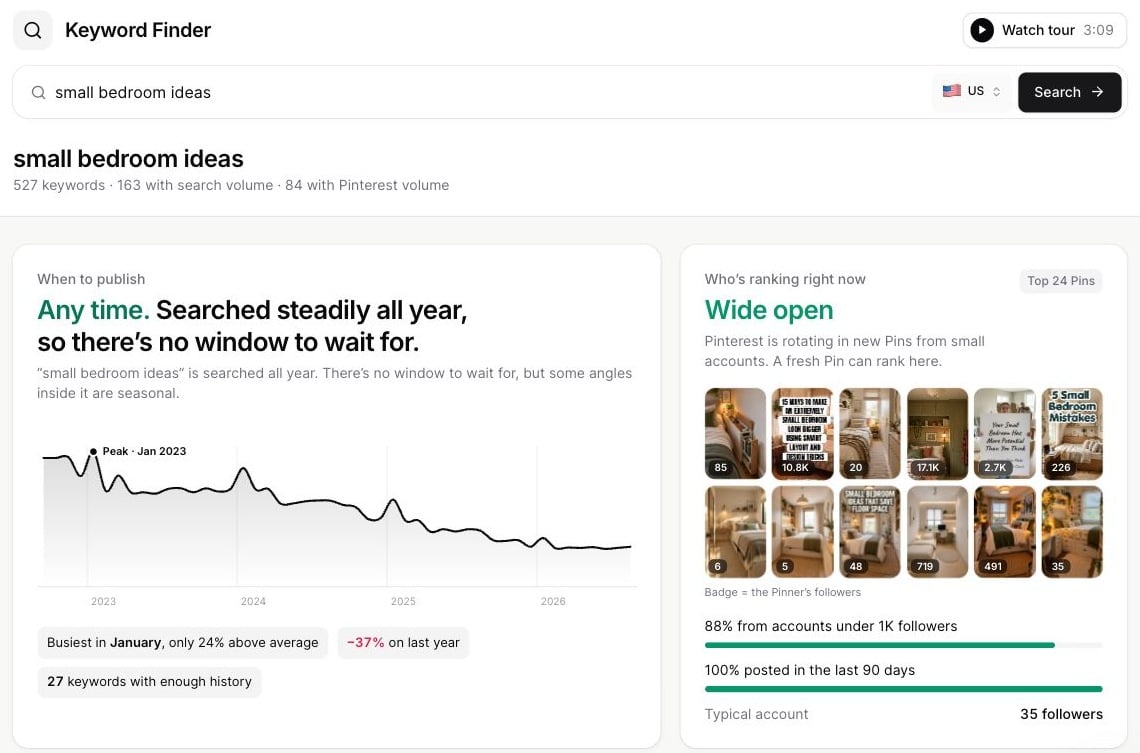
home decor, meal prep, or summer outfits. Pinsearch then gives you related keyword ideas, estimated volume, difficulty, recent trends, and helpful groups so you can decide which ideas are worth using.
Use Keyword Finder when you want to:
- Plan new Pinterest pins
- Find blog or article topics
- Compare different keyword ideas
- Save promising keywords to a Project
- Export keywords for your content calendar

Search for a keyword
Try to start broad. For example, search
home decor before searching a very specific phrase like small apartment cozy boho wall decor.

Read the results
After the search finishes, Pinsearch shows a list of keyword ideas related to your topic. You may also see a Top Ranking Pins section. This gives you a quick sense of what is already working for that topic on Pinterest, including average saves, common content formats, and visual themes.
Understand the main columns
Here is what each column means in plain language:- Keyword: The phrase people may search for on Pinterest.
- Volume: Estimated volume for the keyword. Higher volume usually means more demand.
- Difficulty: A 0 to 100 estimate of how competitive the keyword may be. Lower numbers are usually easier.
- Recent Trends: A small trend chart that helps you see whether recent demand is moving up, down, or staying steady.
- Category and Group: Labels that organize related keyword ideas together.
Standard and premium keyword ideas
Some searches include both standard keyword ideas and premium keyword ideas. Standard ideas help you start your research quickly. Premium keyword ideas give you more opportunities from Pinterest-native signals, especially when you want a deeper list for planning content. If premium ideas are locked, you can still use the visible keyword ideas and upgrade later if you need the full list.
Filter and sort the list
When a search returns many ideas, use the filters above the table to narrow the list. You can filter by:- Keyword text
- Keyword type
- Volume
- Difficulty
- Trend
- Category
- Group
- Search for words like
ideas,diy,recipe, oroutfit - Look for lower difficulty keywords when you want easier topics
- Focus on one category when your content plan is specific
- Hide columns you do not need for the moment
Save keywords to a Project
If you find keywords you want to use later, select them in the table and click Add to Project. Projects help you keep research organized. For example, you could create one Project for a blog post, one for a seasonal Pinterest campaign, or one for a competitor research session. If Add to Project is disabled, select at least one keyword first.Export keyword ideas
Use Export when you want to download keywords and work with them outside Pinsearch.
- Selected keywords when you only want the ideas you checked
- All keywords when you want the full available list from the current search
A simple research workflow
For most Pinterest planning, this workflow works well:- Search a broad topic.
- Look at the highest-volume ideas.
- Check difficulty so you do not only choose very competitive keywords.
- Use filters to find more specific phrases.
- Save your best ideas to a Project.
- Use those keywords in pin titles, pin descriptions, boards, or article topics.
Related guides
- Understand standard and premium keyword ideas
- Understand estimated volume, difficulty, and recent trends
- Filter, sort, export, and customize keyword results
- Save keyword research to Projects
Troubleshooting
No keyword ideas appeared
Try a broader phrase, check spelling, or switch the country. If the topic is very narrow, start with the parent topic first.
Volume or difficulty is missing
Give Pinsearch a moment to finish loading the metrics. If the numbers still do not appear, run the search again.
Premium keyword ideas are locked
Add to Project is disabled
Select one or more keyword rows first.