

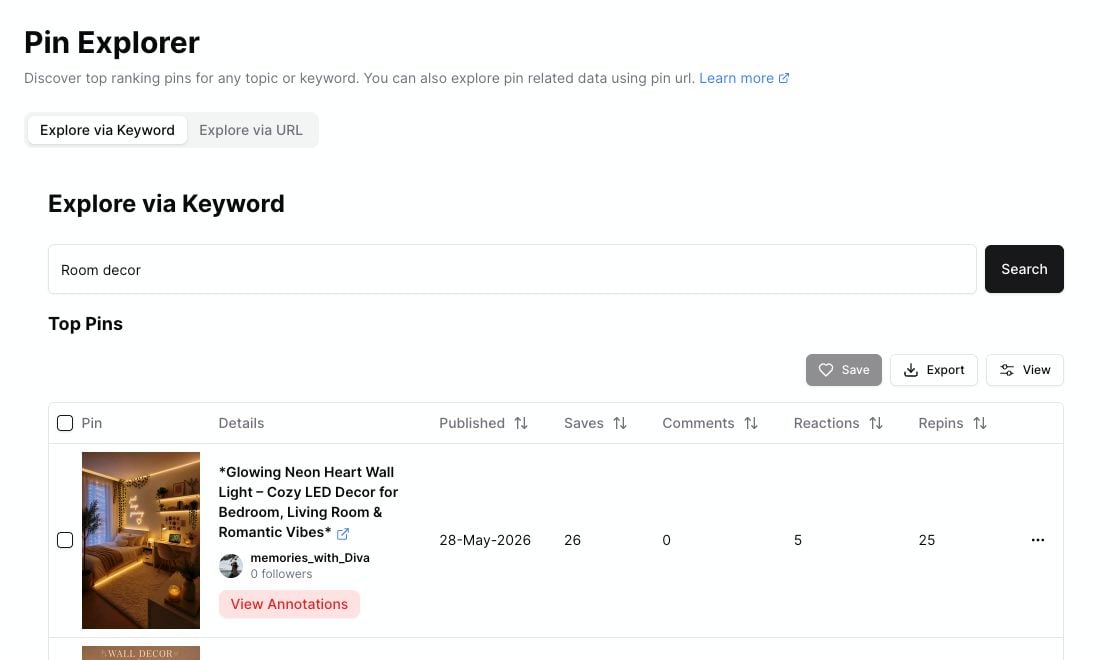
Pin Explorer opens with the keyword already filled in, so you can inspect top pins right away.
Open Pin Explorer from a row
1
Run a keyword search
Search for a topic in Keyword Finder.
2
Find a promising keyword
Look for a keyword with useful estimated volume, reasonable difficulty, or a strong fit for your content plan.
3
Point at the keyword row
Hover over the keyword. Pinsearch shows quick actions beside the keyword.
4
Open top pins
Click the View top pins icon.
When to use Pin Explorer
Use Pin Explorer when you want to know what is actually ranking for a keyword. It can help you answer:- What do top pins look like?
- Which pins have the most saves, comments, reactions, or repins?
- Are the top results fresh or older?
- Which pinners are showing up often?
- Are there linked articles or profiles worth reviewing?
What to do after opening Pin Explorer
After Pin Explorer loads:- Review the top pins.
- Sort by saves, comments, reactions, or repins if needed.
- Open any pins you want to inspect more closely.
- Save useful pins to a Project.
- Export pin research if you want to work outside Pinsearch.