

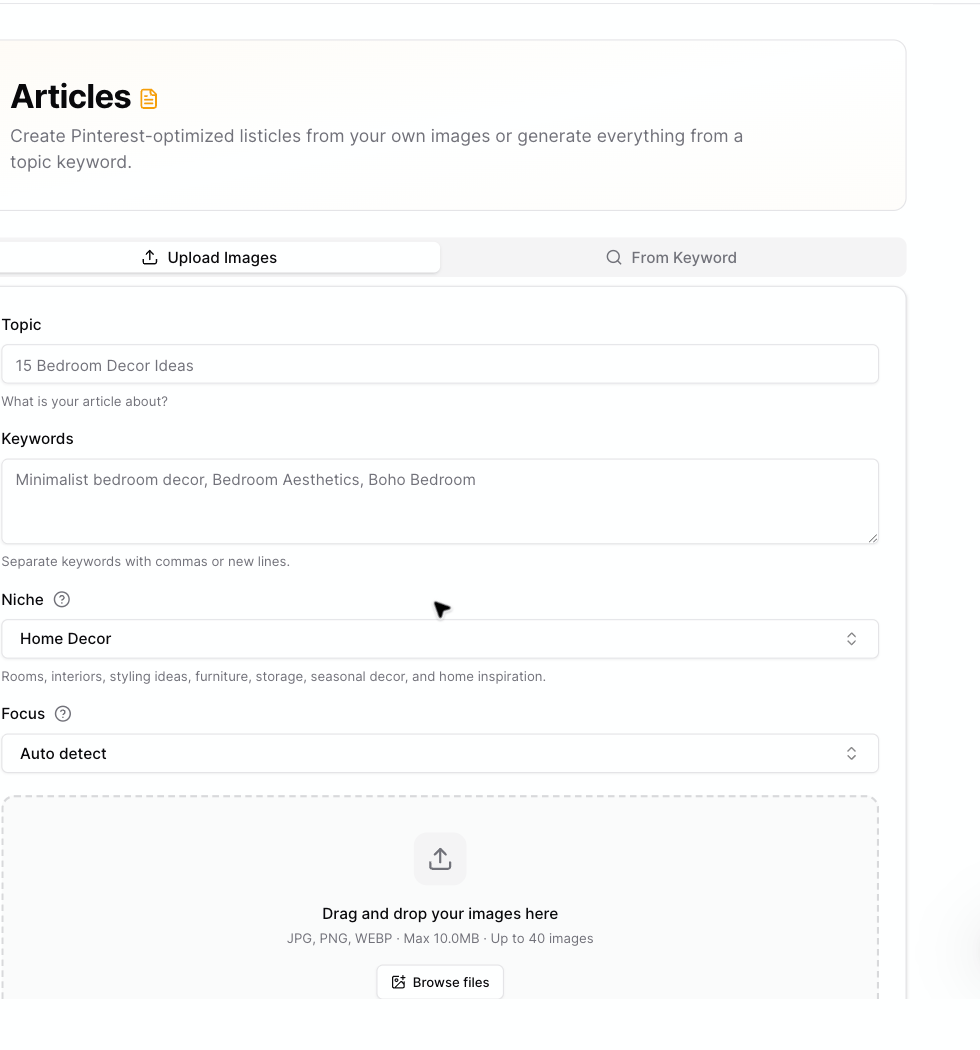
The upload dropzone shows supported file types, file size, and image count limits.
Upload limits
If an image is rejected
Pinsearch may reject an image when:- The file type is not supported.
- The file is larger than 10 MB.
- The file is corrupted.
- The file cannot be previewed.
Duplicate image warnings
If Pinsearch thinks an uploaded image is a duplicate, it shows a warning on that image card. Duplicates are not always wrong. For example, you may intentionally use two similar product photos. But if the duplicate is accidental, remove one before generating so the article does not repeat itself.Image order
After uploading, drag images left or right to arrange them. The order affects the article structure. Put images in the order you want readers to see them.Credits and image count
Image-based article generation uses 1 credit per uploaded image. If you upload 18 images, the article uses 18 credits. If you upload 40 images, the article uses 40 credits.Practical upload tips
- Use clear images that match the article topic.
- Avoid very similar images unless the difference matters.
- Put your strongest image first.
- Remove images that do not fit the keyword or article angle.
- Use fewer images if you want a shorter article draft.