

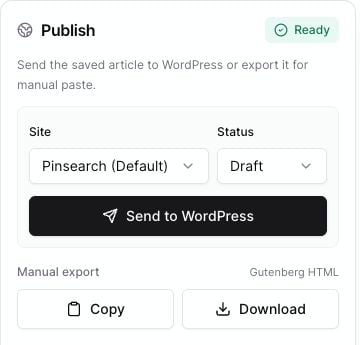
The Publish panel shows readiness, WordPress destination, status, and manual export options.
Start with the article itself
Review the visible article first:- Make sure the title matches the topic.
- Read the introduction and check that it sets the right expectation.
- Skim each heading to make sure the article is easy to follow.
- Remove repeated or awkward sentences.
- Check that the conclusion feels useful, not abrupt.
Check images
Open the Image tab in the Publish panel and review each image. Make sure:- The best image is marked as the featured image.
- Each image has useful alt text.
- Captions are correct if you plan to show them in WordPress.
- Regenerated or uploaded images still fit the article section.
Check SEO fields
Open the SEO tab and review:- SEO title
- Meta description
- Slug
Check WordPress publishing settings
In the Publish panel:- Choose the Site you want to send the article to.
- Choose the Status.
- Review the readiness badge.
- Fix any warnings before sending.
Decide how to publish
You have two publishing paths:- Use Send to WordPress when your WordPress site is connected and you want Pinsearch to create or update the post.
- Use Copy or Download under Manual export when you want to paste the article into WordPress yourself.
Final pre-publish checklist
- Article title is final.
- Body text has been reviewed.
- Featured image is selected.
- Image alt text is filled in.
- SEO title, meta description, and slug are ready.
- WordPress site and status are correct.
- You clicked Save after your latest edits.