> ## Documentation Index
> Fetch the complete documentation index at: https://docs.pinsearch.co/llms.txt
> Use this file to discover all available pages before exploring further.
# Queue and schedule Pins
> Choose queue times, schedule a specific date and manage upcoming Pins.
Use the queue for a regular posting rhythm, or schedule an individual Pin when it needs a particular date and time.
## Choose a publishing method
| Method | When to use it |
| - | - |
| **Add to queue** | Fill the next available times from your weekly schedule. |
| **Schedule Pin** | Choose a specific future date and time for one Pin. |
| **Publish now** | Send a ready Pin immediately. This still counts toward the daily publishing limit. |
Open **Publishing → Settings**. Set the time zone and weekly queue times, then save. Check the spacing between Pins from the same URL.
In **Drafts**, choose a board and use **Add to queue**. For a batch, click **Select**, choose ready drafts and add them together.
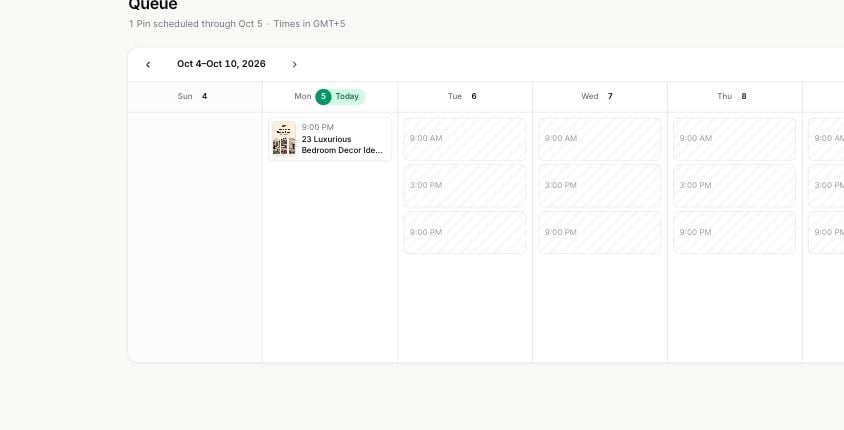
Open **Queue**. Use **List** for order and empty slots, or **Calendar** for a **Week** or **Month** view.
 ## Set a specific time
From a draft's menu, choose **Schedule Pin**. Select the date and time in the account's displayed time zone. Resolve any validation message before confirming.
A specific time must still respect publishing limits and spacing rules. Daylight-saving changes can make a local time unavailable or ambiguous; use a different valid time when prompted.
## Adjust the queue
* Drag Pins to change queue order, or use **Move to top**.
* Drop a Pin onto an empty slot to give it that time.
* Click an empty slot to create a new Pin for that slot.
* Open **Edit** to change Pin details without changing its place in the queue.
* Use **Move to Drafts** to remove a Pin from upcoming publication while keeping it for later.
* Use **Publish now** if the Pin should go out immediately.
The queue rechecks changes against account limits and spacing. If a move is rejected, the Pin returns to its original time and the app explains why. Pins already being sent cannot be rearranged.
## Spacing and waiting for a time
Pins from the same destination URL are spread out according to your spacing settings. Multiple designs for one post may therefore fill times farther apart than Pins for different posts.
**Waiting for a time** means the Pin is queued but has no available time assigned yet. Check queue times, daily capacity and same-URL spacing. The queue plans within a three-month window.
Queue times are approximate: Pins can go out within a few minutes of the shown time. The calendar is a schedule, not a guarantee of publication before you check the result.
See [settings](/pinsearch-product-guides/publishing/configure-publishing-settings) and [publishing problems](/pinsearch-product-guides/publishing/troubleshoot-pinterest-publishing).
This documentation is built and hosted on [Mintlify](https://mintlify.com), a developer documentation platform.
## Set a specific time
From a draft's menu, choose **Schedule Pin**. Select the date and time in the account's displayed time zone. Resolve any validation message before confirming.
A specific time must still respect publishing limits and spacing rules. Daylight-saving changes can make a local time unavailable or ambiguous; use a different valid time when prompted.
## Adjust the queue
* Drag Pins to change queue order, or use **Move to top**.
* Drop a Pin onto an empty slot to give it that time.
* Click an empty slot to create a new Pin for that slot.
* Open **Edit** to change Pin details without changing its place in the queue.
* Use **Move to Drafts** to remove a Pin from upcoming publication while keeping it for later.
* Use **Publish now** if the Pin should go out immediately.
The queue rechecks changes against account limits and spacing. If a move is rejected, the Pin returns to its original time and the app explains why. Pins already being sent cannot be rearranged.
## Spacing and waiting for a time
Pins from the same destination URL are spread out according to your spacing settings. Multiple designs for one post may therefore fill times farther apart than Pins for different posts.
**Waiting for a time** means the Pin is queued but has no available time assigned yet. Check queue times, daily capacity and same-URL spacing. The queue plans within a three-month window.
Queue times are approximate: Pins can go out within a few minutes of the shown time. The calendar is a schedule, not a guarantee of publication before you check the result.
See [settings](/pinsearch-product-guides/publishing/configure-publishing-settings) and [publishing problems](/pinsearch-product-guides/publishing/troubleshoot-pinterest-publishing).
This documentation is built and hosted on [Mintlify](https://mintlify.com), a developer documentation platform.