> ## Documentation Index
> Fetch the complete documentation index at: https://docs.pinsearch.co/llms.txt
> Use this file to discover all available pages before exploring further.
# Create and manage Pin drafts
> Create Pins, review their details and edit batches before publication.
Drafts is the place to prepare a Pin before it goes out. You can save incomplete work and return to it later.
## Ways to create a draft
* **From Pin Maker:** Select designs and use **Add to Publishing**. Choose the intended account; the designs become drafts for review.
* **New Pin:** Upload or drop an image in the composer and enter the details yourself. Turn on **Write it for me** if you want Pinsearch to write copy and suggest a board. Text you enter yourself is kept.
* **Upload images:** Use the additional creation menu beside **New Pin**, or drop images onto Drafts. Batch uploads prepare copy and board suggestions in the background.
* **Copy an existing Pin:** Use **Duplicate** in Drafts or **Copy to Drafts** in Published.
Images must be JPG, PNG or WebP, under 10 MB each. Batch uploads accept up to 300 images at once, subject to the number of waiting Pins your plan allows.
## Review the details
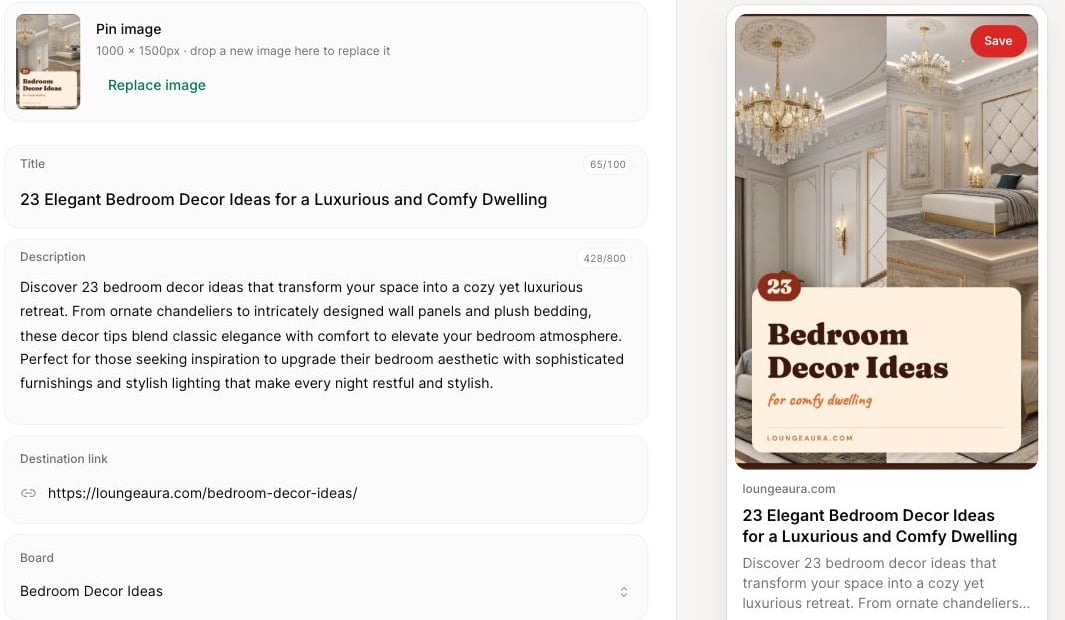
Open **Edit Pin details** to review the image and Pinterest preview.
| Field | What to check |
| - | - |
| **Title** | A readable title, up to 100 characters. |
| **Description** | Useful context and natural keyword wording, up to 800 characters. |
| **Destination link** | The complete page address, including `https://`, when you want the Pin to lead to your site. |
| **Board** | The board that matches the content. You can create a board from the picker. |
| **Alt text** | A useful description of what the image shows, up to 500 characters. |
A Pin needs an image and board to publish. Title, description, alt text and destination link are optional, but useful copy and a relevant link usually make the Pin more helpful. An invalid link still needs correcting.
Use **Save changes** before closing the editor. Replacing the image updates the same draft; review its copy and preview afterward.
 ## Suggested copy and boards
Review suggestions before scheduling. Pinsearch may leave the board unselected if it cannot find a suitable match. Choose one yourself rather than assuming a suggestion will always be available.
Use **Rewrite title & description** from the Pin's menu to request fresh copy. Check the result before it goes out.
## Work with a batch
Click **Select**, choose drafts, or use **Select all ready**. Batch actions let you add ready Pins to the queue, change their board, rewrite copy or delete drafts. Pins still needing attention must be fixed before scheduling.
**Move to account** transfers the image and metadata to another eligible account. It clears the board and schedule because those belong to the previous account; select a new board before scheduling.
Deleting a draft removes it from upcoming work. Use the **Undo** offered by the success message if the deletion was a mistake.
See [queue and scheduling](/pinsearch-product-guides/publishing/queue-and-schedule-pins) for the three publishing choices.
This documentation is built and hosted on [Mintlify](https://mintlify.com), a developer documentation platform.
## Suggested copy and boards
Review suggestions before scheduling. Pinsearch may leave the board unselected if it cannot find a suitable match. Choose one yourself rather than assuming a suggestion will always be available.
Use **Rewrite title & description** from the Pin's menu to request fresh copy. Check the result before it goes out.
## Work with a batch
Click **Select**, choose drafts, or use **Select all ready**. Batch actions let you add ready Pins to the queue, change their board, rewrite copy or delete drafts. Pins still needing attention must be fixed before scheduling.
**Move to account** transfers the image and metadata to another eligible account. It clears the board and schedule because those belong to the previous account; select a new board before scheduling.
Deleting a draft removes it from upcoming work. Use the **Undo** offered by the success message if the deletion was a mistake.
See [queue and scheduling](/pinsearch-product-guides/publishing/queue-and-schedule-pins) for the three publishing choices.
This documentation is built and hosted on [Mintlify](https://mintlify.com), a developer documentation platform.