> ## Documentation Index
> Fetch the complete documentation index at: https://docs.pinsearch.co/llms.txt
> Use this file to discover all available pages before exploring further.
# Create Pinterest pins with Pin Maker
> Turn blog images into ready-to-download Pinterest pin designs.
Pin Maker turns images from your blog into a varied set of Pinterest pin designs.
Use it when you want to create pins for one article, prepare pins for several posts at once, or build pins from images on your device. You can choose the images, colors, fonts, and wording before downloading the designs as PNG files.
Open **Create** in the Pinsearch sidebar, then select **Pin Maker**.
Pin Maker requires active Pinsearch access through a free trial, subscription, or lifetime license. Creating and downloading pins does not use AI creation credits.
## Create pins from one blog post
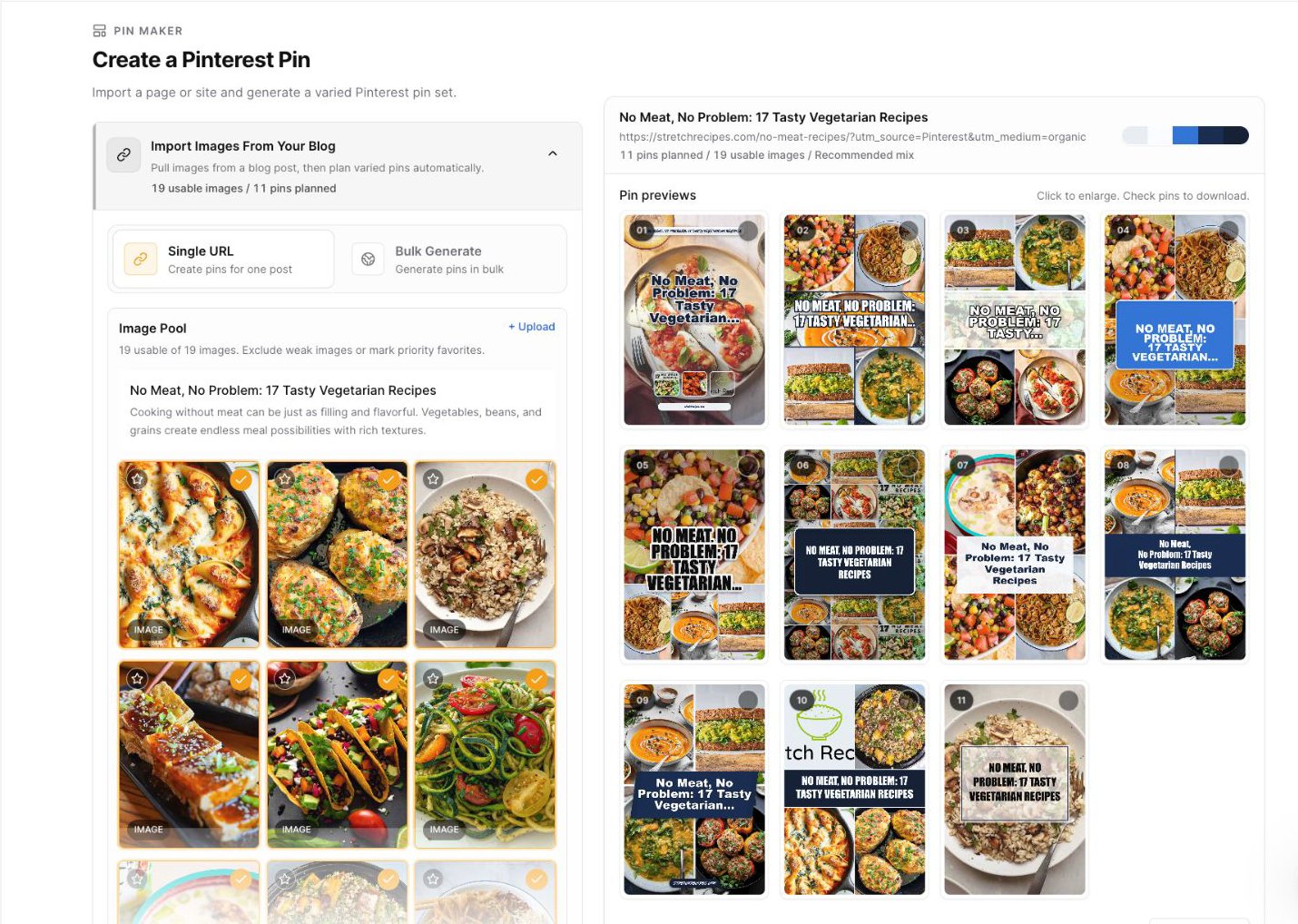
Keep **Single URL** selected. Paste the public URL of your blog post, then click **Import**.
Pin Maker reads the page title, description, website address, and available images. Your first pin set appears automatically after the import finishes.
Pin Maker includes the usable images it found on the page.
* Click a checked image to exclude it from the pin set. Click it again to include it.
* Click the star on an image to make it a priority. Priority images are used more often.
* Click **+ Upload** to add your own JPG, PNG, or WebP images.
* Click **Show all images** when the page contains more images than the first group shown.
Keep at least one image included so Pin Maker can build a pin set.
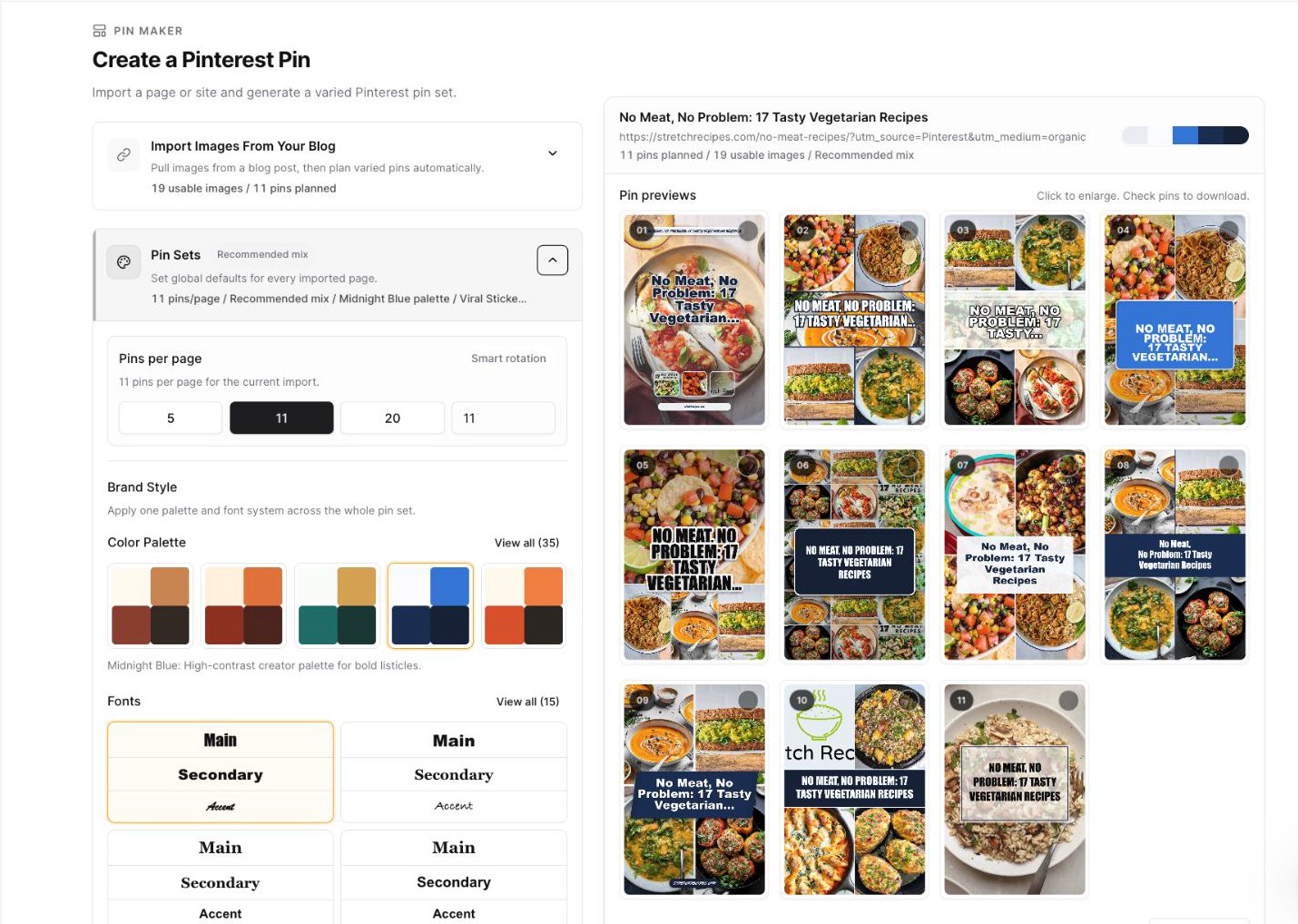
 Expand **Pin Sets** to control the whole set.
Under **Pins per page**, choose **5**, **11**, **20**, or enter a custom number up to 30. Pin Maker uses smart rotation to vary the images and layouts instead of repeating one design.
Under **Brand Style**, choose a **Color Palette** and **Fonts**. Click **View all** when you want to see every available choice.
Expand **Pin Sets** to control the whole set.
Under **Pins per page**, choose **5**, **11**, **20**, or enter a custom number up to 30. Pin Maker uses smart rotation to vary the images and layouts instead of repeating one design.
Under **Brand Style**, choose a **Color Palette** and **Fonts**. Click **View all** when you want to see every available choice.
 Expand **Pin Copy**, then review these fields:
* **Number:** An optional number for list-style pins, such as `17`.
* **Pin title:** The main headline shown on the designs.
* **Accent text:** An optional short phrase used by some layouts as a badge or script-style detail.
* **Footer / website:** Your website name. Pin Maker fills this from the imported URL when possible.
Your previews update as you type. Keep the title and accent text short enough to read quickly on a phone.
Click a preview to enlarge it. Click **Customize** to choose where the title sits for that template, such as **Auto**, **Top**, **Center**, or **Bottom**.
Use the check in the corner of each preview to select the pins you want to download.
Click **Download selected** to download only the checked designs, or click **Download all** to download the complete set.
Pin Maker downloads a ZIP file containing PNG images that are ready for your Pinterest workflow.
Download the pins you want before refreshing or leaving Pin Maker. Pin sets are not saved in the Article Library.
## Create pins from images on your device
You can use Pin Maker even when you do not have a blog post ready.
Under **Single URL**, click **Upload images manually instead**. Choose one or more JPG, PNG, or WebP images, then use **Pin Sets**, **Pin Copy**, and the preview controls in the same way as an imported post.
The title, accent text, number, and footer start as editable fields because there is no page for Pin Maker to read.
## Create pins for several posts
Use **Bulk Generate** when you want to prepare pin sets for more than one article from the same website.
Select **Bulk Generate**, enter your website address, then click **Find Posts**.
Pin Maker checks the website sitemap and lists the posts it can find. Use the search box to narrow the list by title or URL.
Expand **Pin Copy**, then review these fields:
* **Number:** An optional number for list-style pins, such as `17`.
* **Pin title:** The main headline shown on the designs.
* **Accent text:** An optional short phrase used by some layouts as a badge or script-style detail.
* **Footer / website:** Your website name. Pin Maker fills this from the imported URL when possible.
Your previews update as you type. Keep the title and accent text short enough to read quickly on a phone.
Click a preview to enlarge it. Click **Customize** to choose where the title sits for that template, such as **Auto**, **Top**, **Center**, or **Bottom**.
Use the check in the corner of each preview to select the pins you want to download.
Click **Download selected** to download only the checked designs, or click **Download all** to download the complete set.
Pin Maker downloads a ZIP file containing PNG images that are ready for your Pinterest workflow.
Download the pins you want before refreshing or leaving Pin Maker. Pin sets are not saved in the Article Library.
## Create pins from images on your device
You can use Pin Maker even when you do not have a blog post ready.
Under **Single URL**, click **Upload images manually instead**. Choose one or more JPG, PNG, or WebP images, then use **Pin Sets**, **Pin Copy**, and the preview controls in the same way as an imported post.
The title, accent text, number, and footer start as editable fields because there is no page for Pin Maker to read.
## Create pins for several posts
Use **Bulk Generate** when you want to prepare pin sets for more than one article from the same website.
Select **Bulk Generate**, enter your website address, then click **Find Posts**.
Pin Maker checks the website sitemap and lists the posts it can find. Use the search box to narrow the list by title or URL.
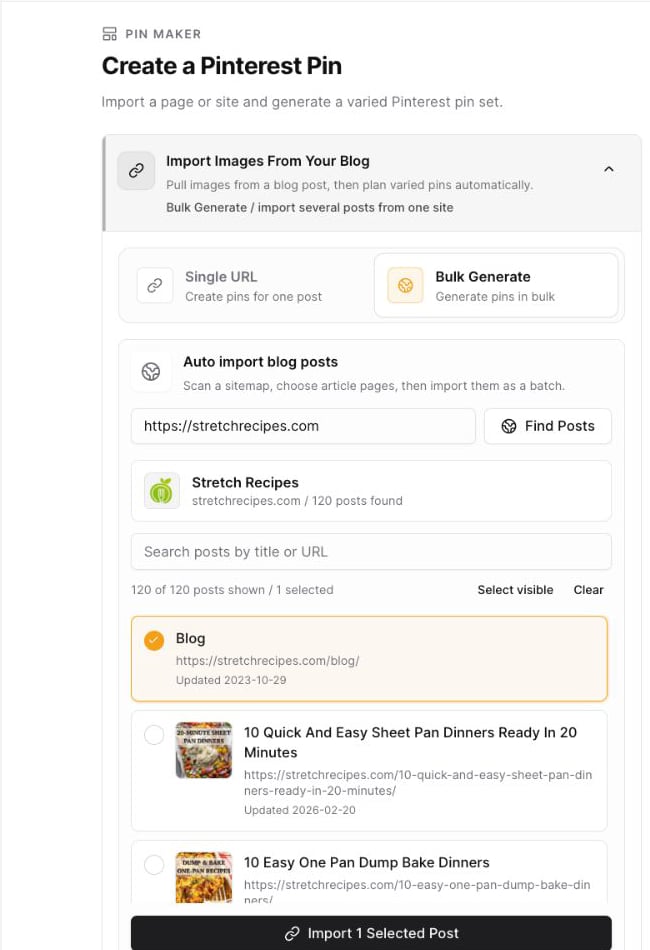 Select the posts you want, then click **Import Selected Posts**. Pin Maker can import up to 10 posts in one batch.
If sitemap search does not show the pages you need, click **Copy/paste bulk URLs manually**. Paste one article URL per line, then click **Import URLs**.
Select an imported page to see its pin previews. Use **change images** when you want to include, exclude, prioritize, or upload images for that page.
**Pin Copy** changes the currently selected page. **Pin Sets** applies the pin count, palette, and fonts across the bulk run.
Check individual previews and click **Download selected** when you only need pins from the current page. Click **Download all** to download every generated pin from every imported page in one ZIP file.
## How the recommended mix works
Pin Maker plans a varied set for you automatically:
* It favors clearer, larger images and skips images you exclude.
* It uses starred priority images more often without placing them on every pin.
* It rotates layouts, image combinations, and text positions to reduce repetition.
* It may create fewer pins than requested when there are not enough usable images or unique layout combinations.
Give Pin Maker several clear images with different subjects or angles. A more varied Image Pool usually produces a stronger, less repetitive pin set.
## Troubleshooting
Make sure the blog post is public and opens without a login. Try the direct article URL instead of a category or homepage. You can also click **Upload images manually instead** and add JPG, PNG, or WebP files from your device.
The current Image Pool may not support enough unique designs. Include more usable images, upload additional images, or choose a smaller number under **Pins per page**.
Remove its priority star, exclude duplicate versions, or mark other strong images as priority. Pin Maker rebuilds the mix as you change the Image Pool.
Click the check in the corner of at least one pin preview. The button becomes available after a pin is selected.
Click **Copy/paste bulk URLs manually**, paste the direct article URLs one per line, and click **Import URLs**. You can import up to 10 URLs in one batch.
## Related guides
* [Write Pin titles and descriptions](/pinsearch-product-guides/ai-creation-tools/write-pin-titles-and-descriptions)
* [Explore top pins by keyword](/pinsearch-product-guides/pin-explorer/explore-top-pins-by-keyword)
* [Plans and billing overview](/pinsearch-product-guides/billing-credits-and-access/plans-and-billing-overview)
Select the posts you want, then click **Import Selected Posts**. Pin Maker can import up to 10 posts in one batch.
If sitemap search does not show the pages you need, click **Copy/paste bulk URLs manually**. Paste one article URL per line, then click **Import URLs**.
Select an imported page to see its pin previews. Use **change images** when you want to include, exclude, prioritize, or upload images for that page.
**Pin Copy** changes the currently selected page. **Pin Sets** applies the pin count, palette, and fonts across the bulk run.
Check individual previews and click **Download selected** when you only need pins from the current page. Click **Download all** to download every generated pin from every imported page in one ZIP file.
## How the recommended mix works
Pin Maker plans a varied set for you automatically:
* It favors clearer, larger images and skips images you exclude.
* It uses starred priority images more often without placing them on every pin.
* It rotates layouts, image combinations, and text positions to reduce repetition.
* It may create fewer pins than requested when there are not enough usable images or unique layout combinations.
Give Pin Maker several clear images with different subjects or angles. A more varied Image Pool usually produces a stronger, less repetitive pin set.
## Troubleshooting
Make sure the blog post is public and opens without a login. Try the direct article URL instead of a category or homepage. You can also click **Upload images manually instead** and add JPG, PNG, or WebP files from your device.
The current Image Pool may not support enough unique designs. Include more usable images, upload additional images, or choose a smaller number under **Pins per page**.
Remove its priority star, exclude duplicate versions, or mark other strong images as priority. Pin Maker rebuilds the mix as you change the Image Pool.
Click the check in the corner of at least one pin preview. The button becomes available after a pin is selected.
Click **Copy/paste bulk URLs manually**, paste the direct article URLs one per line, and click **Import URLs**. You can import up to 10 URLs in one batch.
## Related guides
* [Write Pin titles and descriptions](/pinsearch-product-guides/ai-creation-tools/write-pin-titles-and-descriptions)
* [Explore top pins by keyword](/pinsearch-product-guides/pin-explorer/explore-top-pins-by-keyword)
* [Plans and billing overview](/pinsearch-product-guides/billing-credits-and-access/plans-and-billing-overview)