> ## Documentation Index
> Fetch the complete documentation index at: https://docs.pinsearch.co/llms.txt
> Use this file to discover all available pages before exploring further.
# Understand pin metrics
> Learn what Pin Explorer metrics mean and how to use them.
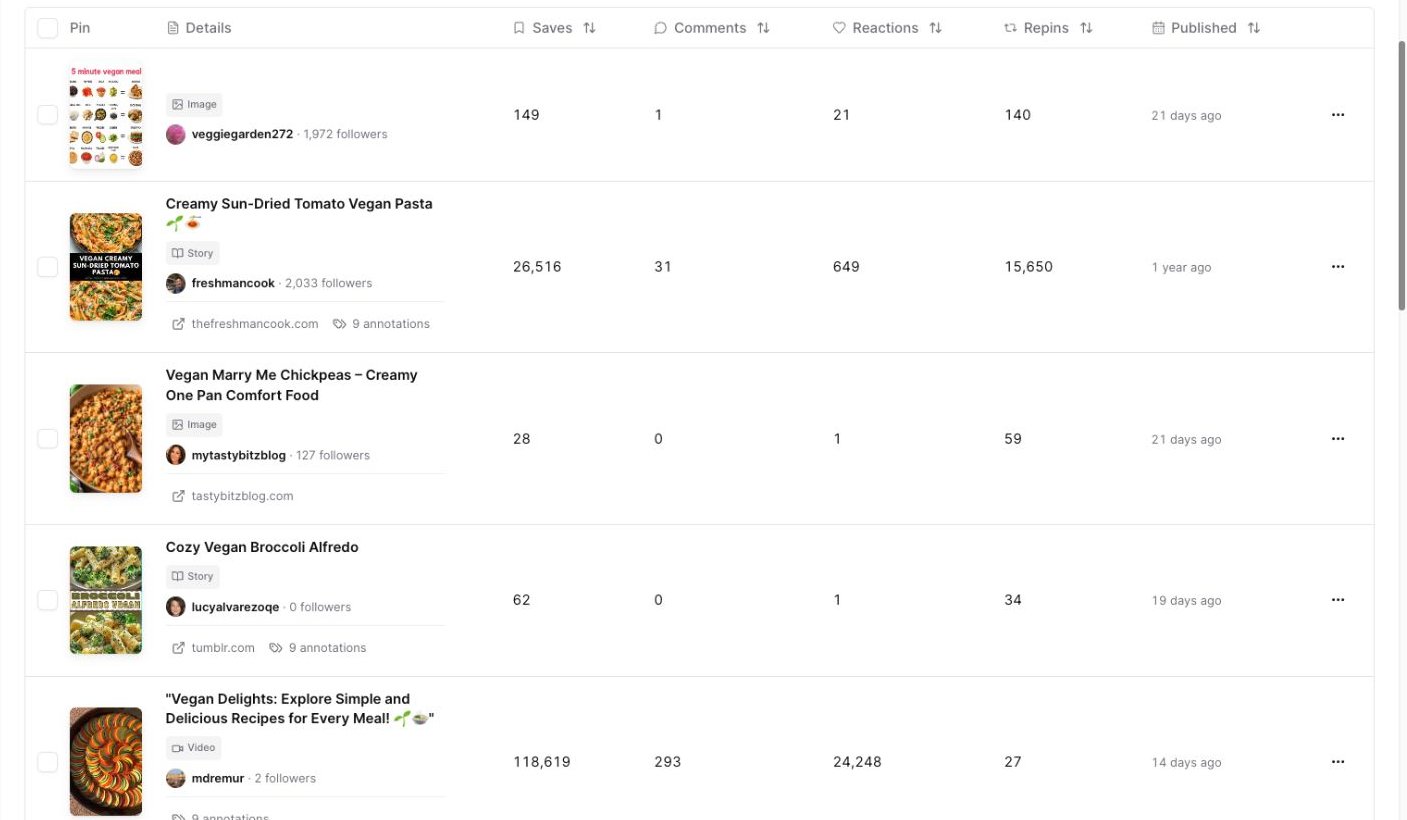
Pin Explorer shows summary signals and pin-level metrics so you can compare what is working on Pinterest.
Use the numbers as clues, not as a single score. A strong pin usually has a mix of useful content, clear visuals, good timing, and the right topic fit.
 ## Summary cards
The top summary cards describe the whole result set.
* **Commercial signals:** Shows pins that look like shopping, paid, affiliate, sponsored, or likely organic pins.
* **Format mix:** Shows whether results are image, video, carousel, or story pins.
* **Outbound destinations:** Shows whether pins link to outside websites and which domain appears most.
* **Source concentration:** Shows whether the topic is led by many different sources or a few repeated sources.
Use these cards before you judge single pins. They can reveal patterns like "most top pins link to recipes" or "story pins are common for this topic."
## Pin
The **Pin** column shows a preview image.
Click the image when you want to see a larger version. This helps you study the layout, image style, text overlay, and visual angle.
## Details
The **Details** column shows the pin title and pinner information.
You may see:
* The pin title.
* The pinner username.
* The pinner follower count.
* The pin format, such as image or story.
* Commercial labels, such as paid, affiliate or sponsored, or shopping.
* A linked website domain, when the pin has an outside destination.
* An annotations button, such as **9 annotations**, when Pinterest labels are available.
Click the pinner username to open that pinner in **Profile Explorer**.
## Published
**Published** shows the date Pinsearch has for the pin.
Use it to compare newer and older pins. A newer pin with strong engagement can be a sign that the topic or visual angle is active right now.
## Saves
**Saves** shows how many times people saved the pin.
Saves are useful because Pinterest users often save content they want to revisit, try, buy, or use for inspiration.
High saves can suggest:
* The idea is useful.
* The visual is worth keeping.
* The topic has planning or inspiration value.
* The pin answers something people want later.
## Comments
**Comments** show how many comments the pin has.
Comments can signal that the pin started a conversation, raised questions, or made people react more deeply.
## Reactions
**Reactions** show quick engagement on the pin.
Use reactions as a lighter engagement signal. They can help you compare pins when saves and comments are close.
## Repins
**Repins** show how often the pin has been shared again.
Repins can help you spot ideas that spread beyond the original pin.
## Pinner follower count
The follower count appears under the pinner username in the **Details** column.
Use it for context. A pin from a small profile with strong saves may be especially interesting because it performed well without a large audience.
## Linked websites
Some pins show a linked website domain in the **Details** column.
Use linked websites to understand:
* What the pin promises.
* What the destination page covers.
* How the pin title connects to the article.
* Whether the content angle fits your own audience.
## How to compare pins responsibly
Do not judge a pin from one metric only.
A practical review flow:
1. Scan the summary cards for broad patterns.
2. Sort by **Saves** to find high-interest pins.
3. Check **Published** to see whether the pin is recent or older.
4. Review **Details** for the title, pinner, linked domain, and labels.
5. Open annotations when they are available.
6. Save useful examples to a Project.
Look for patterns across several pins. One high-performing pin is useful, but repeated patterns are stronger research signals.
## Related guides
* [Explore top pins by keyword](/pinsearch-product-guides/pin-explorer/explore-top-pins-by-keyword)
* [Use Pinterest annotations and search volume](/pinsearch-product-guides/pin-explorer/pinterest-annotations-and-search-volume)
* [Open Pinterest pins, linked articles, and pinner profiles](/pinsearch-product-guides/pin-explorer/open-pinterest-pins-linked-articles-and-pinner-profiles)
* [Profile Explorer](/pinsearch-product-guides/profile-explorer/profile-explorer)
## Summary cards
The top summary cards describe the whole result set.
* **Commercial signals:** Shows pins that look like shopping, paid, affiliate, sponsored, or likely organic pins.
* **Format mix:** Shows whether results are image, video, carousel, or story pins.
* **Outbound destinations:** Shows whether pins link to outside websites and which domain appears most.
* **Source concentration:** Shows whether the topic is led by many different sources or a few repeated sources.
Use these cards before you judge single pins. They can reveal patterns like "most top pins link to recipes" or "story pins are common for this topic."
## Pin
The **Pin** column shows a preview image.
Click the image when you want to see a larger version. This helps you study the layout, image style, text overlay, and visual angle.
## Details
The **Details** column shows the pin title and pinner information.
You may see:
* The pin title.
* The pinner username.
* The pinner follower count.
* The pin format, such as image or story.
* Commercial labels, such as paid, affiliate or sponsored, or shopping.
* A linked website domain, when the pin has an outside destination.
* An annotations button, such as **9 annotations**, when Pinterest labels are available.
Click the pinner username to open that pinner in **Profile Explorer**.
## Published
**Published** shows the date Pinsearch has for the pin.
Use it to compare newer and older pins. A newer pin with strong engagement can be a sign that the topic or visual angle is active right now.
## Saves
**Saves** shows how many times people saved the pin.
Saves are useful because Pinterest users often save content they want to revisit, try, buy, or use for inspiration.
High saves can suggest:
* The idea is useful.
* The visual is worth keeping.
* The topic has planning or inspiration value.
* The pin answers something people want later.
## Comments
**Comments** show how many comments the pin has.
Comments can signal that the pin started a conversation, raised questions, or made people react more deeply.
## Reactions
**Reactions** show quick engagement on the pin.
Use reactions as a lighter engagement signal. They can help you compare pins when saves and comments are close.
## Repins
**Repins** show how often the pin has been shared again.
Repins can help you spot ideas that spread beyond the original pin.
## Pinner follower count
The follower count appears under the pinner username in the **Details** column.
Use it for context. A pin from a small profile with strong saves may be especially interesting because it performed well without a large audience.
## Linked websites
Some pins show a linked website domain in the **Details** column.
Use linked websites to understand:
* What the pin promises.
* What the destination page covers.
* How the pin title connects to the article.
* Whether the content angle fits your own audience.
## How to compare pins responsibly
Do not judge a pin from one metric only.
A practical review flow:
1. Scan the summary cards for broad patterns.
2. Sort by **Saves** to find high-interest pins.
3. Check **Published** to see whether the pin is recent or older.
4. Review **Details** for the title, pinner, linked domain, and labels.
5. Open annotations when they are available.
6. Save useful examples to a Project.
Look for patterns across several pins. One high-performing pin is useful, but repeated patterns are stronger research signals.
## Related guides
* [Explore top pins by keyword](/pinsearch-product-guides/pin-explorer/explore-top-pins-by-keyword)
* [Use Pinterest annotations and search volume](/pinsearch-product-guides/pin-explorer/pinterest-annotations-and-search-volume)
* [Open Pinterest pins, linked articles, and pinner profiles](/pinsearch-product-guides/pin-explorer/open-pinterest-pins-linked-articles-and-pinner-profiles)
* [Profile Explorer](/pinsearch-product-guides/profile-explorer/profile-explorer)