> ## Documentation Index
> Fetch the complete documentation index at: https://docs.pinsearch.co/llms.txt
> Use this file to discover all available pages before exploring further.
# Save and export pins from Pin Explorer
> Save selected pins to Projects or export pin research from Pin Explorer.
Save and export tools help you keep Pin Explorer research after the search is finished.
Use **Save** when you want to keep selected pins inside Pinsearch Projects. Use **Export** when you want a CSV file for a spreadsheet, client note, content calendar, or planning doc.
## Select pins first
Before saving selected pins, check the box beside each row you want to keep.
You can select one pin, several pins, or all visible rows on the page.
If **Save** is disabled, no pin rows are selected.
## Save pins to a Project
Search by keyword or paste Pin URLs.
Check the box beside each pin you want to save.
Click **Save**.
Hover over the Project you want and click **Add**.
After the save finishes, Pinsearch shows a success message and clears the selected rows.
## Create a new Project while saving
If you do not already have the right Project:
1. Click **Save**.
2. Click **New**.
3. Enter a Project name.
4. Click the checkmark button.
5. Add the selected pins to the new Project.
Project names must be at least 3 characters long.
## Duplicate pins
If a selected pin already exists in the Project, Pinsearch skips the duplicate instead of saving the same pin twice.
Duplicate handling happens quietly so your Project stays cleaner.
## Export pins
Click **Export** when you want to download pin research.
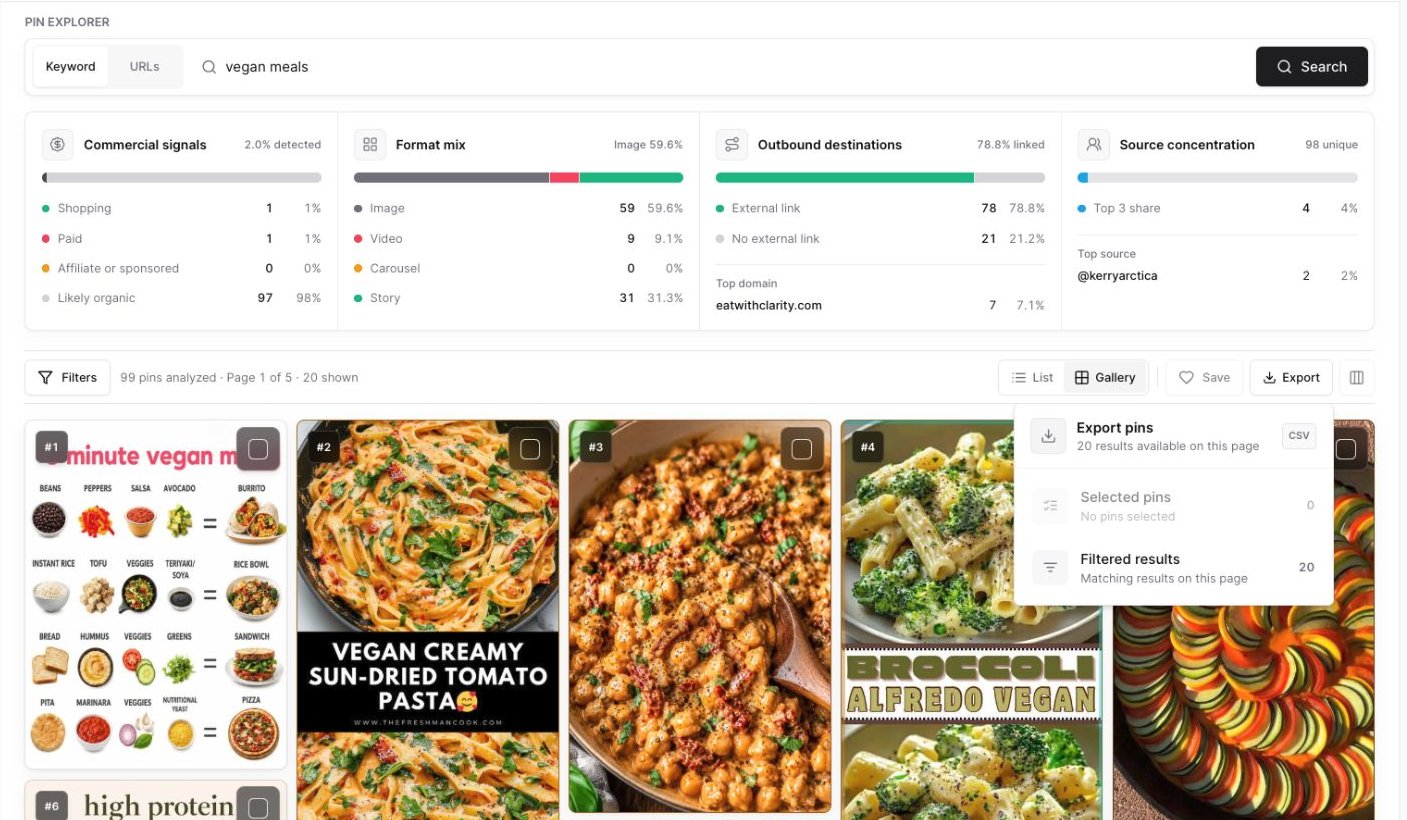 You can export:
* **Selected pins:** Only the pins you checked.
* **Filtered results:** The matching pins currently shown on the page.
For keyword searches, Pin Explorer shows one page of pins at a time. If you want to export another page, move to that page and export again.
The export includes useful fields such as the pin title, Pin URL, saves, published date, comments, reactions, annotations, and image URL.
## When to save versus export
Use **Save** when you want to continue working inside Pinsearch.
Good examples:
* Save inspiration pins for a future article.
* Save competitor pins for a research session.
* Save examples before reviewing them with Profile Explorer.
Use **Export** when you want to work outside Pinsearch.
Good examples:
* Build a spreadsheet of pin examples.
* Share pin research with a teammate or client.
* Add pin data to a content calendar.
## Review saved pins later
Saved pins appear inside the Project you chose.
From a Project, you can come back to your saved research and compare pins with saved keywords or profiles from the same campaign.
## Related guides
* [Create and manage Projects](/pinsearch-product-guides/projects/create-and-manage-projects)
* [Save research to Projects as you work](/pinsearch-product-guides/projects/save-research-to-projects-as-you-work)
* [Explore top pins by keyword](/pinsearch-product-guides/pin-explorer/explore-top-pins-by-keyword)
* [Understand pin metrics](/pinsearch-product-guides/pin-explorer/understand-pin-metrics)
You can export:
* **Selected pins:** Only the pins you checked.
* **Filtered results:** The matching pins currently shown on the page.
For keyword searches, Pin Explorer shows one page of pins at a time. If you want to export another page, move to that page and export again.
The export includes useful fields such as the pin title, Pin URL, saves, published date, comments, reactions, annotations, and image URL.
## When to save versus export
Use **Save** when you want to continue working inside Pinsearch.
Good examples:
* Save inspiration pins for a future article.
* Save competitor pins for a research session.
* Save examples before reviewing them with Profile Explorer.
Use **Export** when you want to work outside Pinsearch.
Good examples:
* Build a spreadsheet of pin examples.
* Share pin research with a teammate or client.
* Add pin data to a content calendar.
## Review saved pins later
Saved pins appear inside the Project you chose.
From a Project, you can come back to your saved research and compare pins with saved keywords or profiles from the same campaign.
## Related guides
* [Create and manage Projects](/pinsearch-product-guides/projects/create-and-manage-projects)
* [Save research to Projects as you work](/pinsearch-product-guides/projects/save-research-to-projects-as-you-work)
* [Explore top pins by keyword](/pinsearch-product-guides/pin-explorer/explore-top-pins-by-keyword)
* [Understand pin metrics](/pinsearch-product-guides/pin-explorer/understand-pin-metrics)