> ## Documentation Index
> Fetch the complete documentation index at: https://docs.pinsearch.co/llms.txt
> Use this file to discover all available pages before exploring further.
# Analyze specific Pinterest Pin URLs
> Paste one or more Pin URLs to inspect their performance metrics.
Use **URLs** mode when you already know which Pinterest pins you want to inspect.
Instead of starting from a keyword, you can paste one or more Pin URLs and ask Pinsearch to return pin details and metrics for those exact pins.
## When to use URLs mode
URLs mode is useful when you want to research:
* Your own pins.
* Competitor pins.
* Pins from a Pinterest board.
* Pins a client sent you.
* Inspiration pins you already collected.
* Pins you want to compare before creating new content.
## Analyze Pin URLs
Open **Pin Explorer** from the Research section.
Click **URLs** beside the keyword field.
Paste one Pinterest Pin URL per line in the text box.
Click **Analyze pins**.
The button changes to **Analyzing** while Pinsearch is working.
## Input format
Paste one URL per line.
For example:
```text theme={null}
https://www.pinterest.com/pin/1234567890/
https://www.pinterest.com/pin/9876543210/
```
Use full Pinterest Pin URLs when possible. Board URLs, profile URLs, idea URLs, and ordinary website URLs are not the same as Pin URLs.
## Read the results
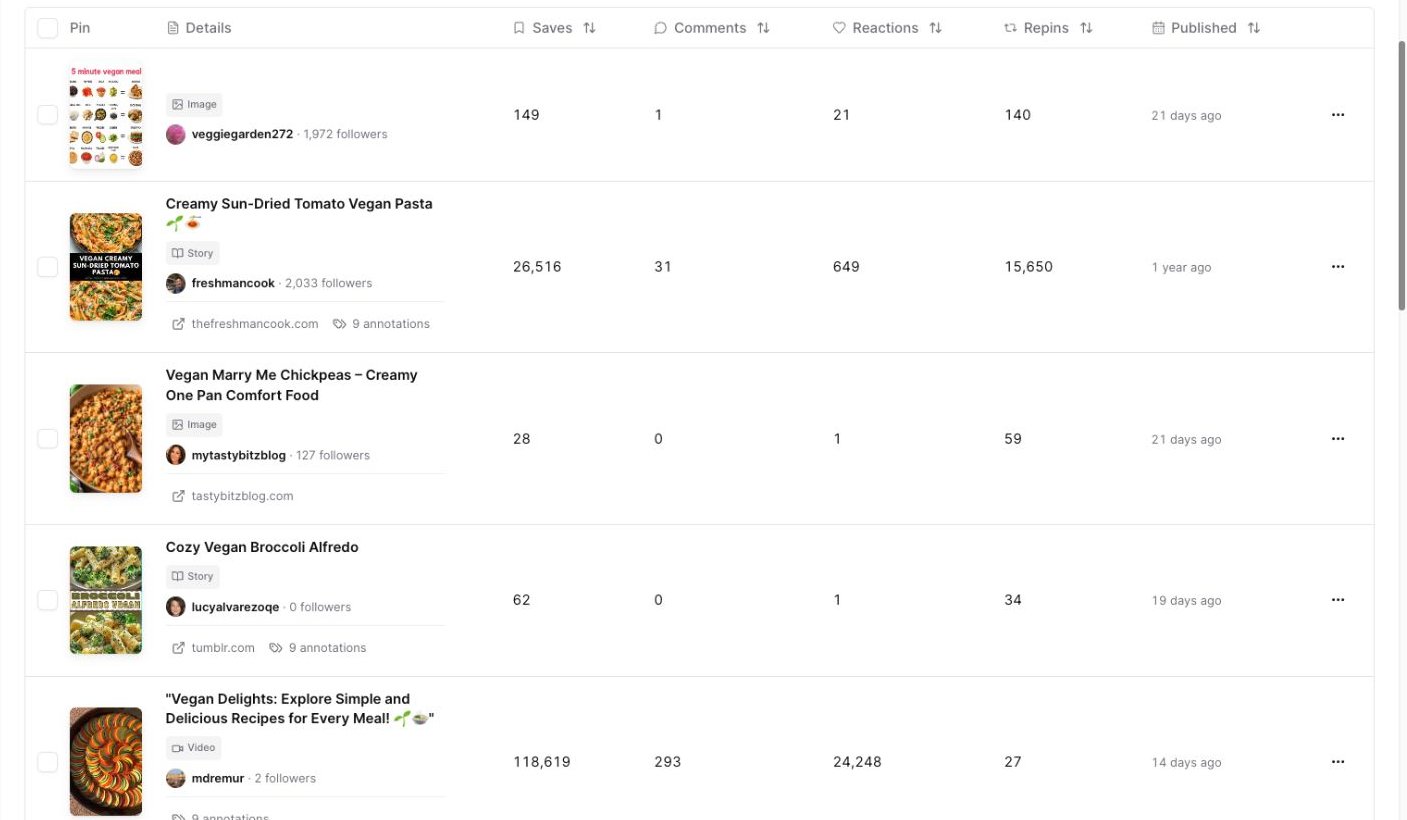
URLs mode returns the same result area used by keyword mode.
You can review:
* Summary cards.
* Pin image.
* Pin title.
* Pinner username.
* Pinner follower count.
* Published date.
* Saves.
* Comments.
* Reactions.
* Repins.
* Annotations, when available.
 ## Save or export URL results
After the lookup finishes, you can use the table like any other Pin Explorer result:
* Select rows and click **Save** to add pins to a Project.
* Click **Export** to download selected pins or filtered results.
* Use the row action menu to open the pin on Pinterest or copy the Pin URL.
* Open the annotations button, such as **9 annotations**, when labels are available.
## If a URL does not return a result
If one or more URLs do not return a pin:
1. Check that each URL is a Pinterest Pin URL.
2. Paste one URL per line.
3. Remove extra text before or after the URL.
4. Try one URL first, then add more after it works.
5. Retry later if the pin may be unavailable or private.
Pinsearch may return the pins it can read and skip URLs it cannot read.
## Related guides
* [Pin Explorer](/pinsearch-product-guides/pin-explorer/pin-explorer)
* [Understand pin metrics](/pinsearch-product-guides/pin-explorer/understand-pin-metrics)
* [Save and export pins from Pin Explorer](/pinsearch-product-guides/pin-explorer/save-and-export-pins-from-pin-explorer)
* [Troubleshoot Pin Explorer](/pinsearch-product-guides/pin-explorer/troubleshoot-pin-explorer)
## Save or export URL results
After the lookup finishes, you can use the table like any other Pin Explorer result:
* Select rows and click **Save** to add pins to a Project.
* Click **Export** to download selected pins or filtered results.
* Use the row action menu to open the pin on Pinterest or copy the Pin URL.
* Open the annotations button, such as **9 annotations**, when labels are available.
## If a URL does not return a result
If one or more URLs do not return a pin:
1. Check that each URL is a Pinterest Pin URL.
2. Paste one URL per line.
3. Remove extra text before or after the URL.
4. Try one URL first, then add more after it works.
5. Retry later if the pin may be unavailable or private.
Pinsearch may return the pins it can read and skip URLs it cannot read.
## Related guides
* [Pin Explorer](/pinsearch-product-guides/pin-explorer/pin-explorer)
* [Understand pin metrics](/pinsearch-product-guides/pin-explorer/understand-pin-metrics)
* [Save and export pins from Pin Explorer](/pinsearch-product-guides/pin-explorer/save-and-export-pins-from-pin-explorer)
* [Troubleshoot Pin Explorer](/pinsearch-product-guides/pin-explorer/troubleshoot-pin-explorer)