> ## Documentation Index
> Fetch the complete documentation index at: https://docs.pinsearch.co/llms.txt
> Use this file to discover all available pages before exploring further.
# Connect Pinsearch MCP to Claude and ChatGPT
> Connect Pinsearch to Claude or ChatGPT, then use it to research Pinterest keyword ideas inside your assistant.
Pinsearch MCP lets Claude, ChatGPT, and supported AI assistants use your Pinsearch keyword research while you chat.
Use it when you want to brainstorm Pinterest keywords, group ideas into topics, compare opportunities, or turn keyword research into content plans without leaving your assistant.
## What you need
* An active Pinsearch account.
* Access to Claude or ChatGPT settings where custom connectors, apps, or plugins can be added.
* This Pinsearch MCP URL: `https://app.pinsearch.co/mcp`
Claude and ChatGPT may use different labels depending on your plan or workspace. Look for words like connector, app, plugin, custom connector, custom app, or MCP server.
## Connect Pinsearch to Claude
In Claude, open **Customize** or **Settings**, then look for **Connectors**.
Click the **+** button or **Add custom connector** option.
Name the connector `Pinsearch`, then paste `https://app.pinsearch.co/mcp` as the MCP server or connector URL.
Click **Add** or **Connect**.
Sign in to Pinsearch if asked, review the requested access, and click **Allow Access**.
## Connect Pinsearch to ChatGPT
From the menu, open **Settings**, then look for **Apps.**
On the next screen, enable Developer mode to install custom apps.
Click on **Create app** to open the config window. Name the app `Pinsearch`, then paste `https://app.pinsearch.co/mcp` as the MCP server URL.
Follow the ChatGPT connection flow, sign in to Pinsearch if asked, and approve access.
If you do not see custom app or connector options, your ChatGPT plan or workspace may not allow them yet. If you use ChatGPT through a team or company workspace, ask your workspace admin.
## Approve access in Pinsearch
Pinsearch shows a permission screen before the connection is approved.
The current requested access is:
* **Run Pinterest keyword research**
This lets the assistant ask Pinsearch for keyword ideas and related keyword fields. It does not give the assistant permission to publish WordPress posts, edit Projects, manage billing, or change your Pinsearch settings.
Click **Allow Access** only if you started the connection from Claude, ChatGPT, or another assistant you trust.
## Use Pinsearch inside Claude or ChatGPT
After connecting, start a new chat and ask the assistant to use Pinsearch.
Start with a simple prompt:
```text theme={null}
Use Pinsearch to find 20 Pinterest keywords for bedroom decor.
```
If the assistant asks whether it can use Pinsearch, approve the tool use.
## Write better prompts
Tell the assistant:
* The topic you want to research.
* How many keyword ideas you want.
* The country or market, if it matters.
* What you want to do with the results.
Try prompts like these:
```text theme={null}
Use Pinsearch to research Pinterest keywords for vegan meal prep in the US. Group the ideas into article topics.
```
```text theme={null}
Use Pinsearch to find keyword ideas for summer front porch decor. Then suggest 5 blog post titles.
```
```text theme={null}
Use Pinsearch to find Pinterest keywords for capsule wardrobe in GB. Show estimated volume when available.
```
For country-specific research, use short country codes such as `US`, `GB`, `CA`, or `AU`.
## Understand the results
The assistant may show fields such as:
* **Keyword:** The keyword idea.
* **Estimated volume:** A demand estimate for that keyword.
* **Category:** The broader topic area.
* **Group:** A related keyword group.
* **Pinterest URL:** A Pinterest search link for the keyword.
* **Confidence:** How strong the match appears.
* **Premium:** Whether the keyword is part of a premium result set.
Ask the assistant to explain any field you do not understand.
## Turn keyword results into content ideas
After Pinsearch returns keywords, ask a follow-up:
```text theme={null}
Turn these keywords into 10 blog post ideas for a beginner-friendly Pinterest content plan.
```
Or:
```text theme={null}
Pick the 5 best keywords for a small blog and explain why each one is useful.
```
You can also ask for article outlines, pin title ideas, keyword groups, seasonal angles, or a simple publishing plan.
## What assistants can and cannot do
Connected assistants can currently request Pinsearch keyword research.
They cannot:
* Publish articles to WordPress.
* Create or edit WordPress sites in Pinsearch.
* Edit Projects.
* Save keywords or pins to Projects.
* Manage billing, credits, or subscriptions.
* Delete your Pinsearch data.
* Change your Pinsearch account settings.
Treat the assistant as a research helper. Review the keyword fit, article angle, and audience value before you create or publish content.
## Review or disconnect assistants
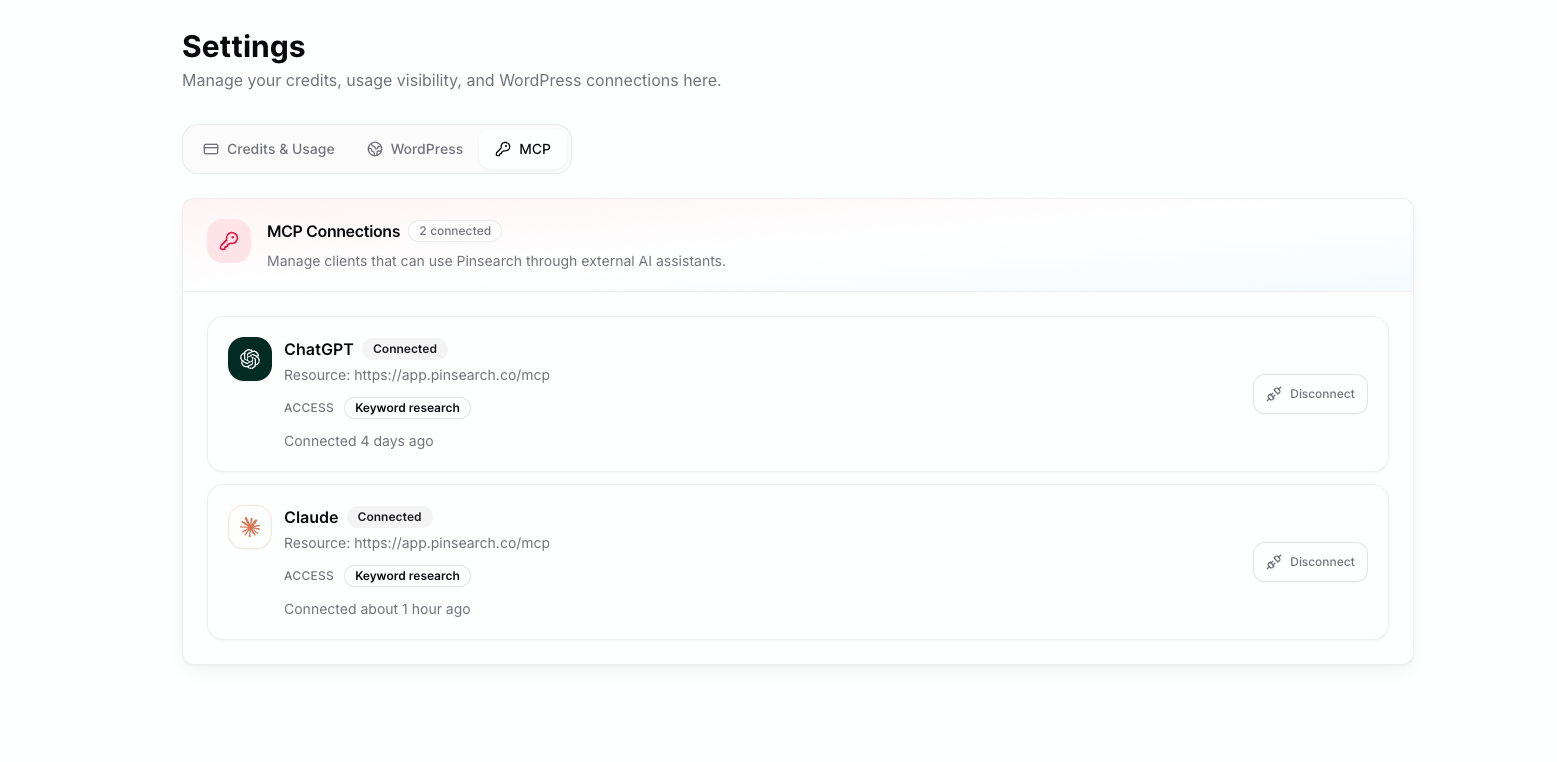
Pinsearch lists approved assistant connections in **Settings**.
1. Open **Settings** in Pinsearch.
2. Select the **MCP** tab.
3. Review the **MCP Connections** list.
Each connection can show the assistant name, connected status, Pinsearch resource URL, access label, and when it was connected. The current access label is **Keyword research**.
## Disconnect later
You can revoke access from Pinsearch:
1. Open **Settings** in Pinsearch.
2. Select the **MCP** tab.
3. Find the connected assistant.
4. Click **Disconnect**.
 Disconnecting an assistant may break saved chats or workflows that depend on that Pinsearch connection. You can reconnect later if needed.
## Troubleshooting
Your Claude or ChatGPT plan may not support custom connectors yet, or your workspace admin may need to enable it. Check your assistant plan and workspace settings.
This is normal. The assistant will ask for your permission to use your Pinsearch account to find keywords etc. This happens for the first time you use Pinsearch inside your Claude or chatGPT chat.
Sign in to the Pinsearch account with active access, then try the connection again. You need an active Pinsearch subscription or trial account to use the MCP.
Disconnect it from **Settings** > **MCP**, then reconnect only from the assistant account you want to use.
Disconnect the old connection in Pinsearch, then return to Claude or ChatGPT and add Pinsearch again. Approve access when Pinsearch asks.
## Related guides
* [Keyword Finder](/pinsearch-product-guides/keyword-research/keyword-finder)
* [Standard and premium keyword ideas](/pinsearch-product-guides/keyword-research/standard-and-premium-keyword-ideas)
* [Add and manage WordPress sites](/pinsearch-product-guides/wordpress-and-integrations/add-and-manage-wordpress-sites)
Disconnecting an assistant may break saved chats or workflows that depend on that Pinsearch connection. You can reconnect later if needed.
## Troubleshooting
Your Claude or ChatGPT plan may not support custom connectors yet, or your workspace admin may need to enable it. Check your assistant plan and workspace settings.
This is normal. The assistant will ask for your permission to use your Pinsearch account to find keywords etc. This happens for the first time you use Pinsearch inside your Claude or chatGPT chat.
Sign in to the Pinsearch account with active access, then try the connection again. You need an active Pinsearch subscription or trial account to use the MCP.
Disconnect it from **Settings** > **MCP**, then reconnect only from the assistant account you want to use.
Disconnect the old connection in Pinsearch, then return to Claude or ChatGPT and add Pinsearch again. Approve access when Pinsearch asks.
## Related guides
* [Keyword Finder](/pinsearch-product-guides/keyword-research/keyword-finder)
* [Standard and premium keyword ideas](/pinsearch-product-guides/keyword-research/standard-and-premium-keyword-ideas)
* [Add and manage WordPress sites](/pinsearch-product-guides/wordpress-and-integrations/add-and-manage-wordpress-sites)