> ## Documentation Index
> Fetch the complete documentation index at: https://docs.pinsearch.co/llms.txt
> Use this file to discover all available pages before exploring further.
# Save keyword research to Projects
> Save selected Keyword Finder results into Pinsearch Projects.
Projects help you keep useful keyword ideas organized after a search.
Use **Add to Project** when you find keywords you want to review later, use in a content plan, or compare with pins and competitor profiles.
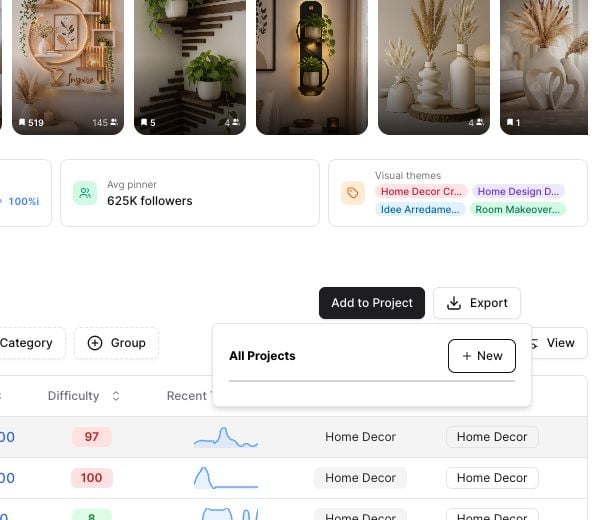 ## Save keywords to an existing Project
Open **Keyword Finder**, enter a seed keyword, choose a country, and click **Search**.
Check the box beside each keyword you want to save.
Click **Add to Project**.
Hover over the Project you want and click **Add**.
After the save finishes, Pinsearch shows a success message and clears the selected rows.
## Create a new Project while saving
If you do not already have the right Project:
1. Click **Add to Project**.
2. Click **New**.
3. Enter a Project name.
4. Click the checkmark button.
5. Add the selected keywords to the new Project.
Project names must be at least 3 characters long.
## What gets saved
Saved keyword rows keep the useful research fields from Keyword Finder, including:
* Keyword
* Estimated volume
* Difficulty
* Recent trend data
* Category
* Group
* Premium marker, when present
Projects also give saved keywords planning fields such as status and priority, which you can update later from the Project page.
## Duplicate keywords
If a selected keyword already exists in the Project, Pinsearch skips the duplicate instead of saving the same keyword twice.
Duplicate handling happens quietly so your Project stays clean.
## Why Add to Project may be disabled
**Add to Project** stays disabled until you select at least one keyword row.
If the button is disabled:
1. Check one or more keyword rows.
2. Make sure the row is still visible after filters.
3. Click **Add to Project** again.
## Related guides
* [Create and manage Projects](/pinsearch-product-guides/projects/create-and-manage-projects)
* [Save research to Projects as you work](/pinsearch-product-guides/projects/save-research-to-projects-as-you-work)
* [Review, export, and clean up Project research](/pinsearch-product-guides/projects/review-export-and-clean-up-project-research)
## Save keywords to an existing Project
Open **Keyword Finder**, enter a seed keyword, choose a country, and click **Search**.
Check the box beside each keyword you want to save.
Click **Add to Project**.
Hover over the Project you want and click **Add**.
After the save finishes, Pinsearch shows a success message and clears the selected rows.
## Create a new Project while saving
If you do not already have the right Project:
1. Click **Add to Project**.
2. Click **New**.
3. Enter a Project name.
4. Click the checkmark button.
5. Add the selected keywords to the new Project.
Project names must be at least 3 characters long.
## What gets saved
Saved keyword rows keep the useful research fields from Keyword Finder, including:
* Keyword
* Estimated volume
* Difficulty
* Recent trend data
* Category
* Group
* Premium marker, when present
Projects also give saved keywords planning fields such as status and priority, which you can update later from the Project page.
## Duplicate keywords
If a selected keyword already exists in the Project, Pinsearch skips the duplicate instead of saving the same keyword twice.
Duplicate handling happens quietly so your Project stays clean.
## Why Add to Project may be disabled
**Add to Project** stays disabled until you select at least one keyword row.
If the button is disabled:
1. Check one or more keyword rows.
2. Make sure the row is still visible after filters.
3. Click **Add to Project** again.
## Related guides
* [Create and manage Projects](/pinsearch-product-guides/projects/create-and-manage-projects)
* [Save research to Projects as you work](/pinsearch-product-guides/projects/save-research-to-projects-as-you-work)
* [Review, export, and clean up Project research](/pinsearch-product-guides/projects/review-export-and-clean-up-project-research)