> ## Documentation Index
> Fetch the complete documentation index at: https://docs.pinsearch.co/llms.txt
> Use this file to discover all available pages before exploring further.
# Prepare an article for publishing
> Review article content, images, SEO fields, and WordPress settings before publishing from Pinsearch.
Before you send an article to WordPress or export it manually, take a few minutes to review the draft.
This helps you catch missing details, avoid publishing surprises, and make the article easier for readers to use.
 ## Start with the article itself
Review the visible article first:
* Make sure the title matches the topic.
* Read the introduction and check that it sets the right expectation.
* Skim each heading to make sure the article is easy to follow.
* Remove repeated or awkward sentences.
* Check that the conclusion feels useful, not abrupt.
Read the article like a busy Pinterest reader. If a section does not help them understand the idea faster, shorten it or rewrite it.
## Check images
Open the **Image** tab in the Publish panel and review each image.
Make sure:
* The best image is marked as the featured image.
* Each image has useful alt text.
* Captions are correct if you plan to show them in WordPress.
* Regenerated or uploaded images still fit the article section.
## Check SEO fields
Open the **SEO** tab and review:
* **SEO title**
* **Meta description**
* **Slug**
These fields help keep the WordPress version organized and easier to review before publishing.
## Check WordPress publishing settings
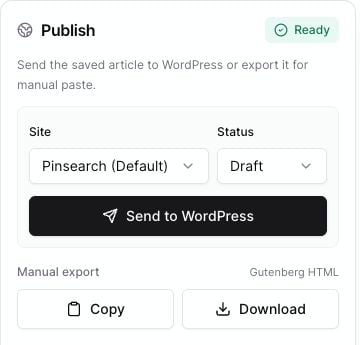
In the **Publish** panel:
1. Choose the **Site** you want to send the article to.
2. Choose the **Status**.
3. Review the readiness badge.
4. Fix any warnings before sending.
Choose **Draft** if you want to review the post inside WordPress first. Choose **Publish** only when you are ready for the post to go live.
## Decide how to publish
You have two publishing paths:
* Use **Send to WordPress** when your WordPress site is connected and you want Pinsearch to create or update the post.
* Use **Copy** or **Download** under **Manual export** when you want to paste the article into WordPress yourself.
## Final pre-publish checklist
* Article title is final.
* Body text has been reviewed.
* Featured image is selected.
* Image alt text is filled in.
* SEO title, meta description, and slug are ready.
* WordPress site and status are correct.
* You clicked **Save** after your latest edits.
## Related guides
* [Edit and save generated articles](/pinsearch-product-guides/article-editor-and-publishing/edit-and-save-generated-articles)
* [Set SEO fields before publishing](/pinsearch-product-guides/article-editor-and-publishing/set-seo-fields-before-publishing)
* [Send an article to WordPress](/pinsearch-product-guides/article-editor-and-publishing/send-an-article-to-wordpress)
* [Export an article for manual WordPress publishing](/pinsearch-product-guides/article-editor-and-publishing/export-an-article-for-manual-wordpress-publishing)
## Start with the article itself
Review the visible article first:
* Make sure the title matches the topic.
* Read the introduction and check that it sets the right expectation.
* Skim each heading to make sure the article is easy to follow.
* Remove repeated or awkward sentences.
* Check that the conclusion feels useful, not abrupt.
Read the article like a busy Pinterest reader. If a section does not help them understand the idea faster, shorten it or rewrite it.
## Check images
Open the **Image** tab in the Publish panel and review each image.
Make sure:
* The best image is marked as the featured image.
* Each image has useful alt text.
* Captions are correct if you plan to show them in WordPress.
* Regenerated or uploaded images still fit the article section.
## Check SEO fields
Open the **SEO** tab and review:
* **SEO title**
* **Meta description**
* **Slug**
These fields help keep the WordPress version organized and easier to review before publishing.
## Check WordPress publishing settings
In the **Publish** panel:
1. Choose the **Site** you want to send the article to.
2. Choose the **Status**.
3. Review the readiness badge.
4. Fix any warnings before sending.
Choose **Draft** if you want to review the post inside WordPress first. Choose **Publish** only when you are ready for the post to go live.
## Decide how to publish
You have two publishing paths:
* Use **Send to WordPress** when your WordPress site is connected and you want Pinsearch to create or update the post.
* Use **Copy** or **Download** under **Manual export** when you want to paste the article into WordPress yourself.
## Final pre-publish checklist
* Article title is final.
* Body text has been reviewed.
* Featured image is selected.
* Image alt text is filled in.
* SEO title, meta description, and slug are ready.
* WordPress site and status are correct.
* You clicked **Save** after your latest edits.
## Related guides
* [Edit and save generated articles](/pinsearch-product-guides/article-editor-and-publishing/edit-and-save-generated-articles)
* [Set SEO fields before publishing](/pinsearch-product-guides/article-editor-and-publishing/set-seo-fields-before-publishing)
* [Send an article to WordPress](/pinsearch-product-guides/article-editor-and-publishing/send-an-article-to-wordpress)
* [Export an article for manual WordPress publishing](/pinsearch-product-guides/article-editor-and-publishing/export-an-article-for-manual-wordpress-publishing)