> ## Documentation Index
> Fetch the complete documentation index at: https://docs.pinsearch.co/llms.txt
> Use this file to discover all available pages before exploring further.
# Manage article images, alt text, captions, and featured image
> Prepare article images and image details before publishing from Pinsearch.
Images help your article feel complete, but they also need clear publishing details.
Use the **Image** tab in the Article Editor to review image assets, choose a featured image, and update alt text or captions.
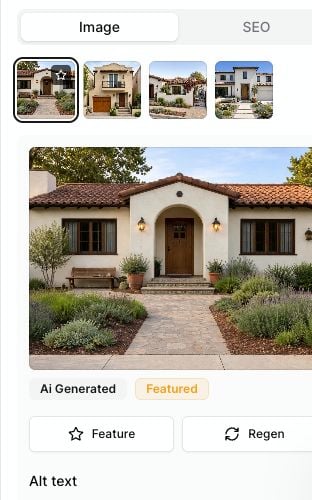 ## Open image settings
1. Open the article in the Article Editor.
2. Find the **Publish** panel on the right.
3. Click the **Image** tab.
4. Select an image thumbnail to review its settings.
## Choose the featured image
The featured image is the main image WordPress can use for the post.
To choose it:
1. Select the image thumbnail.
2. Click **Feature**.
The selected image will show a **Featured** label.
Choose the image that best explains the whole article, not just one small section. This is often the image readers see first in WordPress themes, previews, and social shares.
## Add alt text
Alt text describes the image for readers who use screen readers and for situations where the image cannot load.
Good alt text is specific and plain.
Useful examples:
* `Small patio garden with container plants and a bistro table`
* `Spanish style front entry with terracotta roof tiles`
Avoid vague alt text like:
* `Image`
* `Pinterest picture`
* `Beautiful design`
## Add or update captions
Captions appear with the image in exported WordPress HTML when a caption is available.
Use captions for short context, such as what the image shows or why it is useful.
## Save image changes
Alt text, captions, and featured image choices count as article edits.
Click **Save** after updating image settings.
## Related guides
* [Upload images inside the Article Editor](/pinsearch-product-guides/article-editor-and-publishing/upload-images-inside-the-article-editor)
* [Regenerate an article image](/pinsearch-product-guides/article-editor-and-publishing/regenerate-an-article-image)
* [Prepare an article for publishing](/pinsearch-product-guides/article-editor-and-publishing/prepare-an-article-for-publishing)
* [Fix WordPress publishing warnings](/pinsearch-product-guides/article-editor-and-publishing/fix-wordpress-publishing-warnings)
## Open image settings
1. Open the article in the Article Editor.
2. Find the **Publish** panel on the right.
3. Click the **Image** tab.
4. Select an image thumbnail to review its settings.
## Choose the featured image
The featured image is the main image WordPress can use for the post.
To choose it:
1. Select the image thumbnail.
2. Click **Feature**.
The selected image will show a **Featured** label.
Choose the image that best explains the whole article, not just one small section. This is often the image readers see first in WordPress themes, previews, and social shares.
## Add alt text
Alt text describes the image for readers who use screen readers and for situations where the image cannot load.
Good alt text is specific and plain.
Useful examples:
* `Small patio garden with container plants and a bistro table`
* `Spanish style front entry with terracotta roof tiles`
Avoid vague alt text like:
* `Image`
* `Pinterest picture`
* `Beautiful design`
## Add or update captions
Captions appear with the image in exported WordPress HTML when a caption is available.
Use captions for short context, such as what the image shows or why it is useful.
## Save image changes
Alt text, captions, and featured image choices count as article edits.
Click **Save** after updating image settings.
## Related guides
* [Upload images inside the Article Editor](/pinsearch-product-guides/article-editor-and-publishing/upload-images-inside-the-article-editor)
* [Regenerate an article image](/pinsearch-product-guides/article-editor-and-publishing/regenerate-an-article-image)
* [Prepare an article for publishing](/pinsearch-product-guides/article-editor-and-publishing/prepare-an-article-for-publishing)
* [Fix WordPress publishing warnings](/pinsearch-product-guides/article-editor-and-publishing/fix-wordpress-publishing-warnings)