> ## Documentation Index
> Fetch the complete documentation index at: https://docs.pinsearch.co/llms.txt
> Use this file to discover all available pages before exploring further.
# Fix WordPress publishing warnings
> Understand and resolve warnings that can appear before or during WordPress publishing.
The Article Editor checks for common issues before you send an article to WordPress.
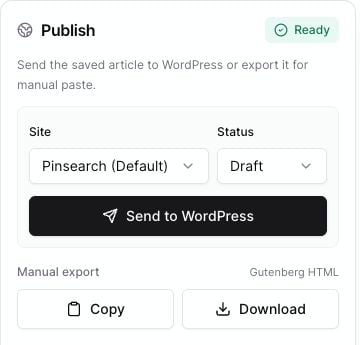
If everything looks ready, the Publish panel shows **Ready**. If something needs attention, it shows the number of warnings.
 ## What warnings mean
Warnings do not always mean publishing is impossible. They mean Pinsearch found something worth fixing before you send the article.
Some warnings block publishing, such as having no connected WordPress site. Others are quality reminders, such as missing alt text.
## Common warnings and fixes
Connect a WordPress site in **Settings** before using **Send to WordPress**.
You can still use **Copy** or **Download** under **Manual export** if you want to publish manually.
Choose a site in the **Site** field.
This can happen when you have connected sites but none is currently selected for this article.
Add a clear article title at the top of the editor.
The title is used for the WordPress post title and for manual export.
Add or restore article content in the editor body.
WordPress needs article content to create a useful post.
Open the **Image** tab, select an image, and click **Feature**.
A featured image helps WordPress themes and previews show the post more clearly.
Open the **Image** tab, select each image, and fill in **Alt text**.
Keep alt text short, descriptive, and specific to the image.
WordPress needs to fetch images from a public web URL before Pinsearch can attach them to a post.
If this warning appears, save the article, check the affected image, and try publishing again. If it keeps happening, use manual export and upload that image directly inside WordPress.
Sometimes WordPress accepts the post but does not accept SEO metadata from Pinsearch.
If the post was created, open it in WordPress and enter the SEO title or meta description in your SEO tool manually.
## If warnings remain
After fixing a warning:
1. Click **Save**.
2. Recheck the **Publish** panel.
3. Send the article again when the warning count is gone or you understand what remains.
## Related guides
* [Prepare an article for publishing](/pinsearch-product-guides/article-editor-and-publishing/prepare-an-article-for-publishing)
* [Manage article images, alt text, captions, and featured image](/pinsearch-product-guides/article-editor-and-publishing/manage-article-images-alt-text-captions-featured-image)
* [Set SEO fields before publishing](/pinsearch-product-guides/article-editor-and-publishing/set-seo-fields-before-publishing)
* [Troubleshoot WordPress publishing failures](/pinsearch-product-guides/article-editor-and-publishing/troubleshoot-wordpress-publishing-failures)
## What warnings mean
Warnings do not always mean publishing is impossible. They mean Pinsearch found something worth fixing before you send the article.
Some warnings block publishing, such as having no connected WordPress site. Others are quality reminders, such as missing alt text.
## Common warnings and fixes
Connect a WordPress site in **Settings** before using **Send to WordPress**.
You can still use **Copy** or **Download** under **Manual export** if you want to publish manually.
Choose a site in the **Site** field.
This can happen when you have connected sites but none is currently selected for this article.
Add a clear article title at the top of the editor.
The title is used for the WordPress post title and for manual export.
Add or restore article content in the editor body.
WordPress needs article content to create a useful post.
Open the **Image** tab, select an image, and click **Feature**.
A featured image helps WordPress themes and previews show the post more clearly.
Open the **Image** tab, select each image, and fill in **Alt text**.
Keep alt text short, descriptive, and specific to the image.
WordPress needs to fetch images from a public web URL before Pinsearch can attach them to a post.
If this warning appears, save the article, check the affected image, and try publishing again. If it keeps happening, use manual export and upload that image directly inside WordPress.
Sometimes WordPress accepts the post but does not accept SEO metadata from Pinsearch.
If the post was created, open it in WordPress and enter the SEO title or meta description in your SEO tool manually.
## If warnings remain
After fixing a warning:
1. Click **Save**.
2. Recheck the **Publish** panel.
3. Send the article again when the warning count is gone or you understand what remains.
## Related guides
* [Prepare an article for publishing](/pinsearch-product-guides/article-editor-and-publishing/prepare-an-article-for-publishing)
* [Manage article images, alt text, captions, and featured image](/pinsearch-product-guides/article-editor-and-publishing/manage-article-images-alt-text-captions-featured-image)
* [Set SEO fields before publishing](/pinsearch-product-guides/article-editor-and-publishing/set-seo-fields-before-publishing)
* [Troubleshoot WordPress publishing failures](/pinsearch-product-guides/article-editor-and-publishing/troubleshoot-wordpress-publishing-failures)