> ## Documentation Index
> Fetch the complete documentation index at: https://docs.pinsearch.co/llms.txt
> Use this file to discover all available pages before exploring further.
# Export an article for manual WordPress publishing
> Copy or download a Pinsearch article when you want to publish it manually in WordPress.
Manual export is useful when you want to review everything inside WordPress yourself or when you do not have a WordPress site connected to Pinsearch.
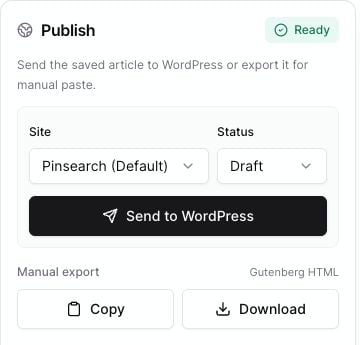
The Article Editor can copy or download Gutenberg-ready HTML for the article.
 ## When to use manual export
Use manual export when:
* You want to paste the article into WordPress yourself.
* Your WordPress site is not connected yet.
* Your WordPress setup has custom publishing steps.
* You want an HTML file for review or backup.
* You prefer to add categories, tags, author settings, or scheduling inside WordPress.
## Copy WordPress HTML
Use **Copy** when you want to paste the article directly into WordPress.
Go to **Create**, open **Library**, and click **View** beside the article.
Check the title, article body, images, captions, and SEO fields. Click **Save** if you made changes.
In the **Manual export** section, click **Copy**.
Open WordPress, create a new post, and paste the copied content into the editor.
Pinsearch copies Gutenberg HTML, including the article title and body content.
## Download an HTML file
Use **Download** when you want a file version of the article.
The downloaded HTML file includes:
* The article title.
* The article body.
* Image HTML, including alt text and captions when available.
* The SEO title and meta description in the HTML document head.
## What to set manually in WordPress
After manual export, review these inside WordPress:
* Featured image.
* Post slug.
* SEO title.
* Meta description.
* Category.
* Tags.
* Author.
* Publish date or schedule.
Manual export gives you the article content, but your WordPress site still controls its final publishing settings.
## Related guides
* [Prepare an article for publishing](/pinsearch-product-guides/article-editor-and-publishing/prepare-an-article-for-publishing)
* [Set SEO fields before publishing](/pinsearch-product-guides/article-editor-and-publishing/set-seo-fields-before-publishing)
* [Manage article images, alt text, captions, and featured image](/pinsearch-product-guides/article-editor-and-publishing/manage-article-images-alt-text-captions-featured-image)
* [Send an article to WordPress](/pinsearch-product-guides/article-editor-and-publishing/send-an-article-to-wordpress)
## When to use manual export
Use manual export when:
* You want to paste the article into WordPress yourself.
* Your WordPress site is not connected yet.
* Your WordPress setup has custom publishing steps.
* You want an HTML file for review or backup.
* You prefer to add categories, tags, author settings, or scheduling inside WordPress.
## Copy WordPress HTML
Use **Copy** when you want to paste the article directly into WordPress.
Go to **Create**, open **Library**, and click **View** beside the article.
Check the title, article body, images, captions, and SEO fields. Click **Save** if you made changes.
In the **Manual export** section, click **Copy**.
Open WordPress, create a new post, and paste the copied content into the editor.
Pinsearch copies Gutenberg HTML, including the article title and body content.
## Download an HTML file
Use **Download** when you want a file version of the article.
The downloaded HTML file includes:
* The article title.
* The article body.
* Image HTML, including alt text and captions when available.
* The SEO title and meta description in the HTML document head.
## What to set manually in WordPress
After manual export, review these inside WordPress:
* Featured image.
* Post slug.
* SEO title.
* Meta description.
* Category.
* Tags.
* Author.
* Publish date or schedule.
Manual export gives you the article content, but your WordPress site still controls its final publishing settings.
## Related guides
* [Prepare an article for publishing](/pinsearch-product-guides/article-editor-and-publishing/prepare-an-article-for-publishing)
* [Set SEO fields before publishing](/pinsearch-product-guides/article-editor-and-publishing/set-seo-fields-before-publishing)
* [Manage article images, alt text, captions, and featured image](/pinsearch-product-guides/article-editor-and-publishing/manage-article-images-alt-text-captions-featured-image)
* [Send an article to WordPress](/pinsearch-product-guides/article-editor-and-publishing/send-an-article-to-wordpress)