> ## Documentation Index
> Fetch the complete documentation index at: https://docs.pinsearch.co/llms.txt
> Use this file to discover all available pages before exploring further.
# Write Pin titles and descriptions
> Generate and edit Pinterest titles and descriptions with Pinsearch.
Use **Pin Titles** when you want several Pinterest title and description options for one pin idea.
This tool is helpful when your pin topic is clear, but you want copy that includes the right keyword and still sounds natural.
 ## What to enter
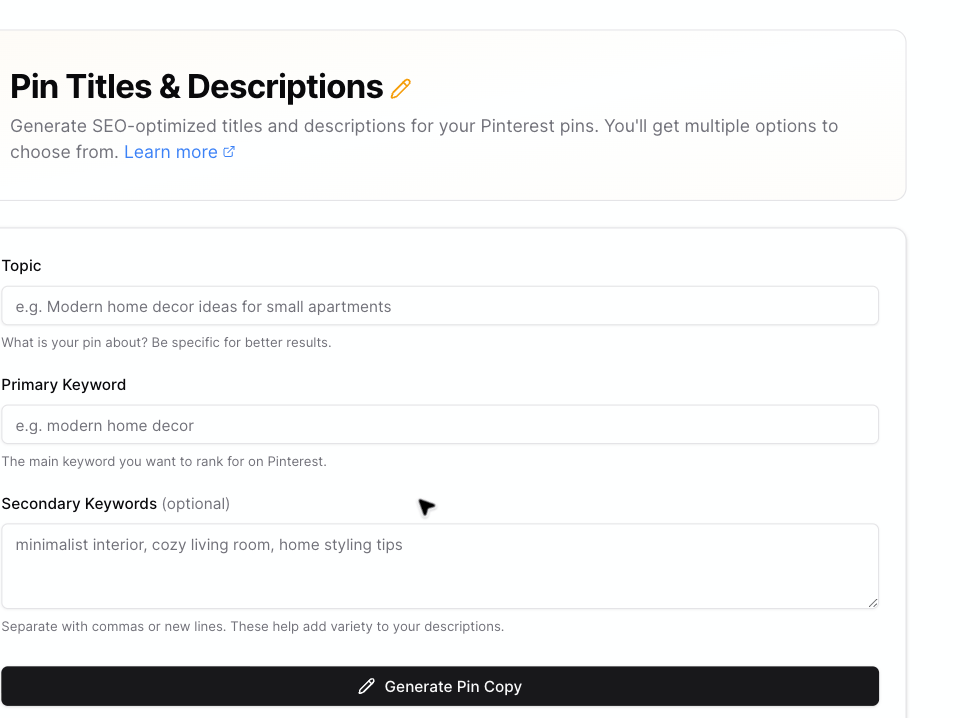
* **Topic:** Describe what the pin is about.
* **Primary Keyword:** Enter the main Pinterest keyword you want the copy to focus on.
* **Secondary Keywords:** Add related keywords if you want more variety in the descriptions.
Separate secondary keywords with commas or new lines.
Use Keyword Finder before writing Pin copy if you are not sure which keyword to target.
## Generate Pin copy
Go to **Create** and open **Pin Titles**.
Enter your topic, primary keyword, and any secondary keywords.
Click **Generate Pin Copy**.
Pinsearch creates multiple options so you can choose the title and description that best match your pin.
## What to enter
* **Topic:** Describe what the pin is about.
* **Primary Keyword:** Enter the main Pinterest keyword you want the copy to focus on.
* **Secondary Keywords:** Add related keywords if you want more variety in the descriptions.
Separate secondary keywords with commas or new lines.
Use Keyword Finder before writing Pin copy if you are not sure which keyword to target.
## Generate Pin copy
Go to **Create** and open **Pin Titles**.
Enter your topic, primary keyword, and any secondary keywords.
Click **Generate Pin Copy**.
Pinsearch creates multiple options so you can choose the title and description that best match your pin.
 ## Use the generated options
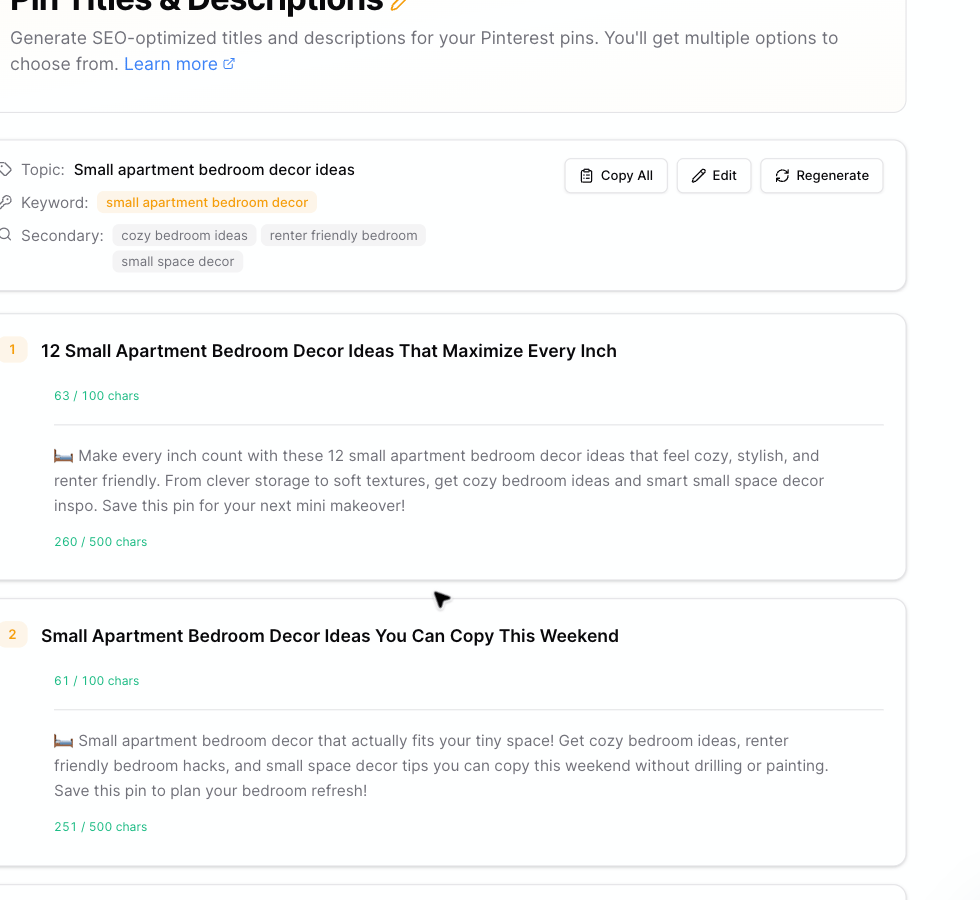
Each option includes:
* A Pin title
* A Pin description
* A title character count
* A description character count
* Copy actions
You can:
* Click the copy icon beside a title or description.
* Click **Copy Option** to copy one full title and description pair.
* Click **Copy All** to copy every option.
* Click **Edit** to change the original topic or keyword inputs.
* Click **Regenerate** to create a fresh set of options.
## Character counts
Pinsearch shows character counts while you review generated copy.
The visible limits are:
* **Title:** 100 characters
* **Description:** 500 characters
Use the counts as a practical editing guide. Shorter, clearer copy is usually easier to scan on Pinterest.
## Credits
Pin title and description generation is free in Pinsearch.
You still need active access to use the tool, but generating Pin copy does not deduct credits from your balance.
## Related guides
* [Keyword Finder](/pinsearch-product-guides/keyword-research/keyword-finder)
* [Create content with Pinsearch](/pinsearch-product-guides/ai-creation-tools/create-content-with-pinsearch)
* [How credits are used by AI creation tools](/pinsearch-product-guides/ai-creation-tools/credits-used-by-ai-creation-tools)
* [Troubleshoot AI article generation](/pinsearch-product-guides/ai-creation-tools/troubleshoot-ai-article-generation)
## Use the generated options
Each option includes:
* A Pin title
* A Pin description
* A title character count
* A description character count
* Copy actions
You can:
* Click the copy icon beside a title or description.
* Click **Copy Option** to copy one full title and description pair.
* Click **Copy All** to copy every option.
* Click **Edit** to change the original topic or keyword inputs.
* Click **Regenerate** to create a fresh set of options.
## Character counts
Pinsearch shows character counts while you review generated copy.
The visible limits are:
* **Title:** 100 characters
* **Description:** 500 characters
Use the counts as a practical editing guide. Shorter, clearer copy is usually easier to scan on Pinterest.
## Credits
Pin title and description generation is free in Pinsearch.
You still need active access to use the tool, but generating Pin copy does not deduct credits from your balance.
## Related guides
* [Keyword Finder](/pinsearch-product-guides/keyword-research/keyword-finder)
* [Create content with Pinsearch](/pinsearch-product-guides/ai-creation-tools/create-content-with-pinsearch)
* [How credits are used by AI creation tools](/pinsearch-product-guides/ai-creation-tools/credits-used-by-ai-creation-tools)
* [Troubleshoot AI article generation](/pinsearch-product-guides/ai-creation-tools/troubleshoot-ai-article-generation)