> ## Documentation Index
> Fetch the complete documentation index at: https://docs.pinsearch.co/llms.txt
> Use this file to discover all available pages before exploring further.
# Create content with Pinsearch
> Use Pinsearch creation tools for Pin copy and article workflows.
Pinsearch creation tools help you turn Pinterest research into publishable content.
Use **Create** when you want help writing Pin copy, building a Pinterest-focused article, or opening drafts you already generated.
 ## What you can create
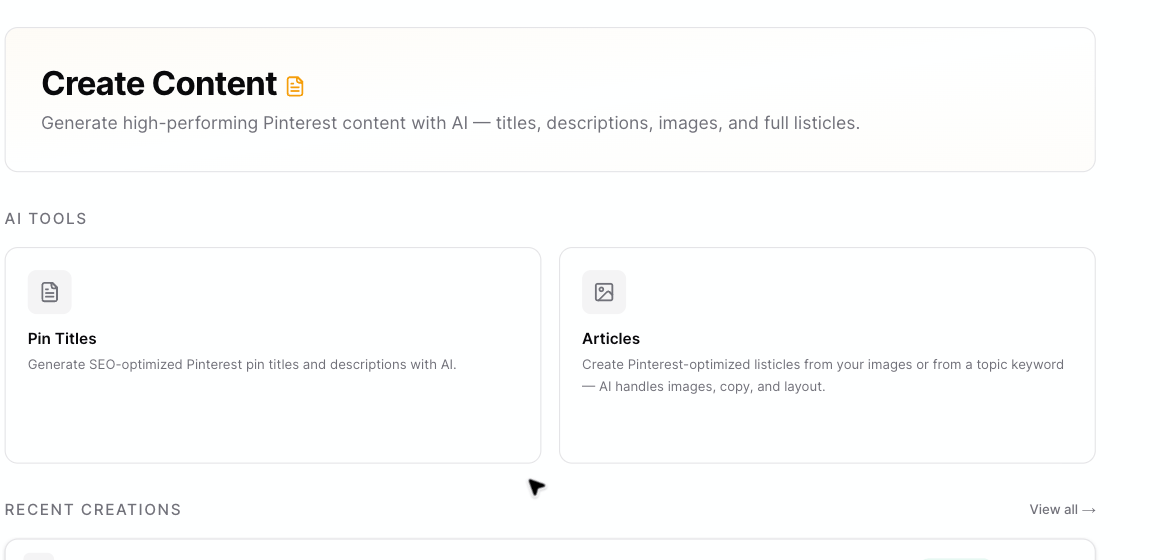
The Create section includes:
* **Pin Titles:** Generate Pinterest title and description options for a pin.
* **Articles:** Create listicle-style article drafts from uploaded images or from a topic keyword.
* **Library:** Find, open, filter, and delete saved article drafts.
The Create hub may also show **Recent Creations** when your account already has article drafts.
## Choose the right tool
Use **Pin Titles** when you already have a pin idea and need better copy.
Use **Articles** when you want Pinsearch to create a longer article draft that you can edit, export, or send to WordPress.
Use **Library** when you want to return to saved drafts.
## Create Pin titles and descriptions
Open **Pin Titles** to generate copy options from:
* A topic
* A primary keyword
* Optional secondary keywords
Pinsearch returns several title and description options. You can copy one title, one description, one full option, or all options at once.
## Create articles
Open **Articles** to choose one of two article workflows:
* **Upload Images:** Upload your own images and turn them into an article.
* **From Keyword:** Start with a topic keyword and let Pinsearch generate a listicle draft.
After article generation finishes, Pinsearch opens the Article Editor so you can review, edit, save, export, or publish.
## Open the Article Library
Use **Library** when you want to manage article drafts you already created.
## What you can create
The Create section includes:
* **Pin Titles:** Generate Pinterest title and description options for a pin.
* **Articles:** Create listicle-style article drafts from uploaded images or from a topic keyword.
* **Library:** Find, open, filter, and delete saved article drafts.
The Create hub may also show **Recent Creations** when your account already has article drafts.
## Choose the right tool
Use **Pin Titles** when you already have a pin idea and need better copy.
Use **Articles** when you want Pinsearch to create a longer article draft that you can edit, export, or send to WordPress.
Use **Library** when you want to return to saved drafts.
## Create Pin titles and descriptions
Open **Pin Titles** to generate copy options from:
* A topic
* A primary keyword
* Optional secondary keywords
Pinsearch returns several title and description options. You can copy one title, one description, one full option, or all options at once.
## Create articles
Open **Articles** to choose one of two article workflows:
* **Upload Images:** Upload your own images and turn them into an article.
* **From Keyword:** Start with a topic keyword and let Pinsearch generate a listicle draft.
After article generation finishes, Pinsearch opens the Article Editor so you can review, edit, save, export, or publish.
## Open the Article Library
Use **Library** when you want to manage article drafts you already created.
 ## Access and credits
Create tools require active Pinsearch access through a free trial, active subscription, or lifetime license.
Pin title and description generation is free. Article generation and AI image regeneration use credits.
## Related guides
* [Write Pin titles and descriptions](/pinsearch-product-guides/ai-creation-tools/write-pin-titles-and-descriptions)
* [Create articles from uploaded images](/pinsearch-product-guides/ai-creation-tools/create-articles-from-uploaded-images)
* [Create articles from a topic or keyword](/pinsearch-product-guides/ai-creation-tools/create-articles-from-topic-or-keyword)
* [Use the Article Library](/pinsearch-product-guides/ai-creation-tools/use-the-article-library)
* [How credits are used by AI creation tools](/pinsearch-product-guides/ai-creation-tools/credits-used-by-ai-creation-tools)
## Access and credits
Create tools require active Pinsearch access through a free trial, active subscription, or lifetime license.
Pin title and description generation is free. Article generation and AI image regeneration use credits.
## Related guides
* [Write Pin titles and descriptions](/pinsearch-product-guides/ai-creation-tools/write-pin-titles-and-descriptions)
* [Create articles from uploaded images](/pinsearch-product-guides/ai-creation-tools/create-articles-from-uploaded-images)
* [Create articles from a topic or keyword](/pinsearch-product-guides/ai-creation-tools/create-articles-from-topic-or-keyword)
* [Use the Article Library](/pinsearch-product-guides/ai-creation-tools/use-the-article-library)
* [How credits are used by AI creation tools](/pinsearch-product-guides/ai-creation-tools/credits-used-by-ai-creation-tools)