> ## Documentation Index
> Fetch the complete documentation index at: https://docs.pinsearch.co/llms.txt
> Use this file to discover all available pages before exploring further.
# Create articles from uploaded images
> Turn uploaded images into a Pinsearch article draft.
Use **Upload Images** when you already have visuals and want Pinsearch to turn them into an article draft.
This workflow is useful for product roundups, decor ideas, outfit ideas, craft examples, recipe collections, and other visual listicles.
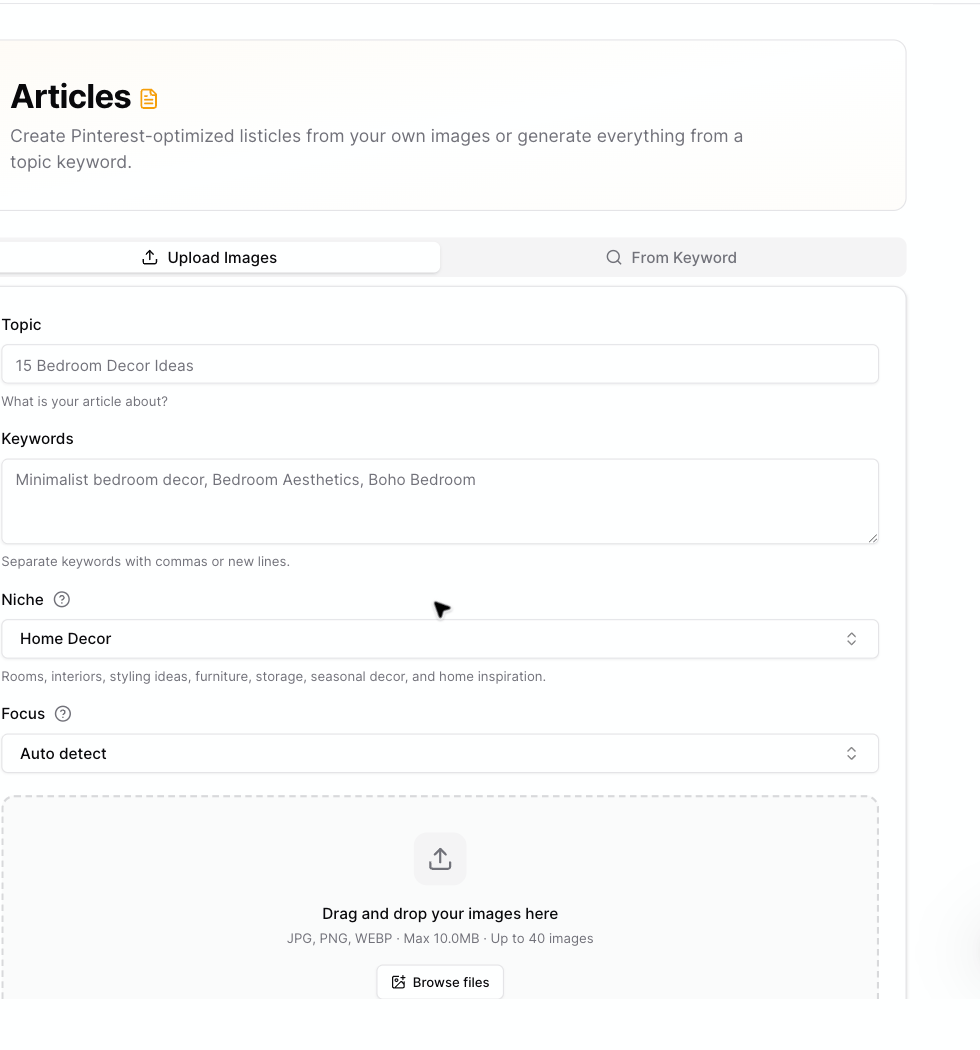 ## What you need
Before generating, prepare:
* A clear article topic
* One or more relevant keywords
* The closest **Niche**
* A **Focus**, or leave it on **Auto detect**
* Images for the article
## Create an article from images
Go to **Create** and open **Articles**.
Select the **Upload Images** tab.
Fill in **Topic**, **Keywords**, **Niche**, and **Focus**.
Drag images into the upload area or click **Browse files**.
Drag images left or right to set the order they should appear in the article.
Review the credit estimate, then click **Generate Article**.
Pinsearch opens the generated draft in the Article Editor when the article is ready.
## Image order matters
After you upload images, Pinsearch shows them as draggable cards.
The order you set becomes the order Pinsearch uses when building the article. Put the strongest or most important image first if you want it to lead the draft.
## Credits
Image-based article generation uses **1 credit per uploaded image**.
For example:
* 5 images use 5 credits.
* 12 images use 12 credits.
* 30 images use 30 credits.
Pinsearch shows the credit estimate before you generate.
## After generation
When generation finishes, the article opens in the Article Editor.
From there, you can:
* Edit the title and body.
* Save changes.
* Update image alt text and captions.
* Copy or download WordPress HTML.
* Send the article to WordPress if you connected a site.
## Related guides
* [Upload limits for image-based articles](/pinsearch-product-guides/ai-creation-tools/upload-limits-for-image-based-articles)
* [Edit and save generated articles](/pinsearch-product-guides/article-editor-and-publishing/edit-and-save-generated-articles)
* [Manage article images, alt text, captions, and featured image](/pinsearch-product-guides/article-editor-and-publishing/manage-article-images-alt-text-captions-featured-image)
* [How credits are used by AI creation tools](/pinsearch-product-guides/ai-creation-tools/credits-used-by-ai-creation-tools)
## What you need
Before generating, prepare:
* A clear article topic
* One or more relevant keywords
* The closest **Niche**
* A **Focus**, or leave it on **Auto detect**
* Images for the article
## Create an article from images
Go to **Create** and open **Articles**.
Select the **Upload Images** tab.
Fill in **Topic**, **Keywords**, **Niche**, and **Focus**.
Drag images into the upload area or click **Browse files**.
Drag images left or right to set the order they should appear in the article.
Review the credit estimate, then click **Generate Article**.
Pinsearch opens the generated draft in the Article Editor when the article is ready.
## Image order matters
After you upload images, Pinsearch shows them as draggable cards.
The order you set becomes the order Pinsearch uses when building the article. Put the strongest or most important image first if you want it to lead the draft.
## Credits
Image-based article generation uses **1 credit per uploaded image**.
For example:
* 5 images use 5 credits.
* 12 images use 12 credits.
* 30 images use 30 credits.
Pinsearch shows the credit estimate before you generate.
## After generation
When generation finishes, the article opens in the Article Editor.
From there, you can:
* Edit the title and body.
* Save changes.
* Update image alt text and captions.
* Copy or download WordPress HTML.
* Send the article to WordPress if you connected a site.
## Related guides
* [Upload limits for image-based articles](/pinsearch-product-guides/ai-creation-tools/upload-limits-for-image-based-articles)
* [Edit and save generated articles](/pinsearch-product-guides/article-editor-and-publishing/edit-and-save-generated-articles)
* [Manage article images, alt text, captions, and featured image](/pinsearch-product-guides/article-editor-and-publishing/manage-article-images-alt-text-captions-featured-image)
* [How credits are used by AI creation tools](/pinsearch-product-guides/ai-creation-tools/credits-used-by-ai-creation-tools)