> ## Documentation Index
> Fetch the complete documentation index at: https://docs.pinsearch.co/llms.txt
> Use this file to discover all available pages before exploring further.
# Create articles from a topic or keyword
> Generate a listicle-style article from a topic, keyword, and content settings.
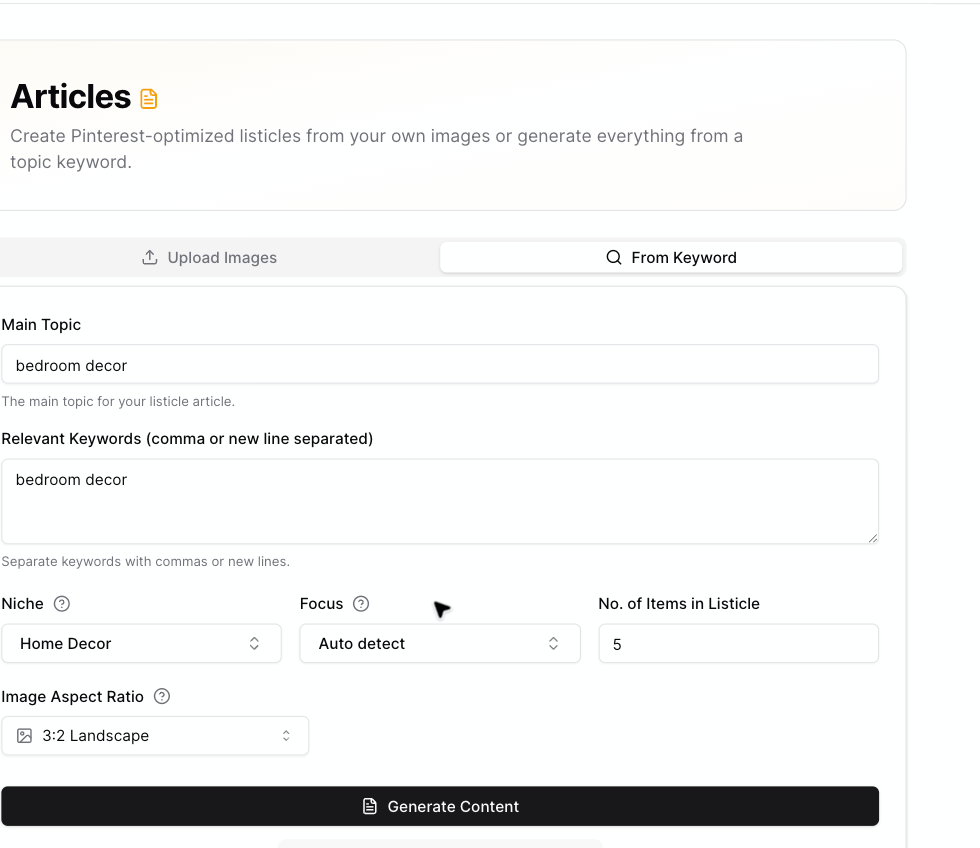
Use **From Keyword** when you want Pinsearch to create a listicle article from a topic and keywords.
This workflow is useful when you have a Pinterest keyword idea but do not already have your own images ready.
 ## What to enter
* **Main Topic:** The article idea, such as `bedroom decor`.
* **Relevant Keywords:** Pinterest keywords to include in the article direction.
* **Niche:** The closest content category.
* **Focus:** Leave this on **Auto detect** unless you want a more specific structure.
* **No. of Items in Listicle:** Choose 1 to 25 items.
* **Image Aspect Ratio:** Choose the shape for AI-generated article images.
## Generate an article
Go to **Create** and open **Articles**.
Select the **From Keyword** tab.
Add the main topic and relevant keywords. Separate keywords with commas or new lines.
Select the niche, focus, number of items, and image aspect ratio.
Review the credit estimate, then click **Generate Content**.
When generation starts, Pinsearch shows progress messages such as:
* **Generating subtopics ideas...**
* **Creating images for each subtopic...**
* **Writing descriptions and finalizing content...**
* **Putting everything together...**
The page redirects to the Article Editor when the article is ready.
## Choose a useful topic
Start with a topic that is clear enough for an article.
Good examples:
* `small apartment bedroom decor`
* `fall front porch ideas`
* `easy meal prep lunches`
Avoid starting with a topic that is too broad, such as `home`, or too long, such as a full article title with several different ideas.
## Credits
Topic-to-article generation uses **2 credits per listicle item**.
For example:
* 5 items use 10 credits.
* 10 items use 20 credits.
* 25 items use 50 credits.
Pinsearch shows the credit estimate before you generate.
## Related guides
* [Choose article length and image aspect ratio](/pinsearch-product-guides/ai-creation-tools/choose-article-length-and-image-aspect-ratio)
* [Edit and save generated articles](/pinsearch-product-guides/article-editor-and-publishing/edit-and-save-generated-articles)
* [Prepare an article for publishing](/pinsearch-product-guides/article-editor-and-publishing/prepare-an-article-for-publishing)
* [How credits are used by AI creation tools](/pinsearch-product-guides/ai-creation-tools/credits-used-by-ai-creation-tools)
## What to enter
* **Main Topic:** The article idea, such as `bedroom decor`.
* **Relevant Keywords:** Pinterest keywords to include in the article direction.
* **Niche:** The closest content category.
* **Focus:** Leave this on **Auto detect** unless you want a more specific structure.
* **No. of Items in Listicle:** Choose 1 to 25 items.
* **Image Aspect Ratio:** Choose the shape for AI-generated article images.
## Generate an article
Go to **Create** and open **Articles**.
Select the **From Keyword** tab.
Add the main topic and relevant keywords. Separate keywords with commas or new lines.
Select the niche, focus, number of items, and image aspect ratio.
Review the credit estimate, then click **Generate Content**.
When generation starts, Pinsearch shows progress messages such as:
* **Generating subtopics ideas...**
* **Creating images for each subtopic...**
* **Writing descriptions and finalizing content...**
* **Putting everything together...**
The page redirects to the Article Editor when the article is ready.
## Choose a useful topic
Start with a topic that is clear enough for an article.
Good examples:
* `small apartment bedroom decor`
* `fall front porch ideas`
* `easy meal prep lunches`
Avoid starting with a topic that is too broad, such as `home`, or too long, such as a full article title with several different ideas.
## Credits
Topic-to-article generation uses **2 credits per listicle item**.
For example:
* 5 items use 10 credits.
* 10 items use 20 credits.
* 25 items use 50 credits.
Pinsearch shows the credit estimate before you generate.
## Related guides
* [Choose article length and image aspect ratio](/pinsearch-product-guides/ai-creation-tools/choose-article-length-and-image-aspect-ratio)
* [Edit and save generated articles](/pinsearch-product-guides/article-editor-and-publishing/edit-and-save-generated-articles)
* [Prepare an article for publishing](/pinsearch-product-guides/article-editor-and-publishing/prepare-an-article-for-publishing)
* [How credits are used by AI creation tools](/pinsearch-product-guides/ai-creation-tools/credits-used-by-ai-creation-tools)